

Smart Playlists
Section titled “Smart Playlists”The Smart Playlists plugin lets you create rule-based playlists from your Music Assistant library.
Smart playlists are dynamic: the tracks are re-evaluated whenever you play the playlist, based on your saved rules and current library/provider state.
Installation
Section titled “Installation”Enable the Smart Playlists plugin via Settings → Plugins → Add a plugin. No additional configuration is required.

Creating a Smart Playlist
Section titled “Creating a Smart Playlist”In the Playlists view, open the ⋮ menu in the top right and choose Create new playlist on → Create Smart Playlist.

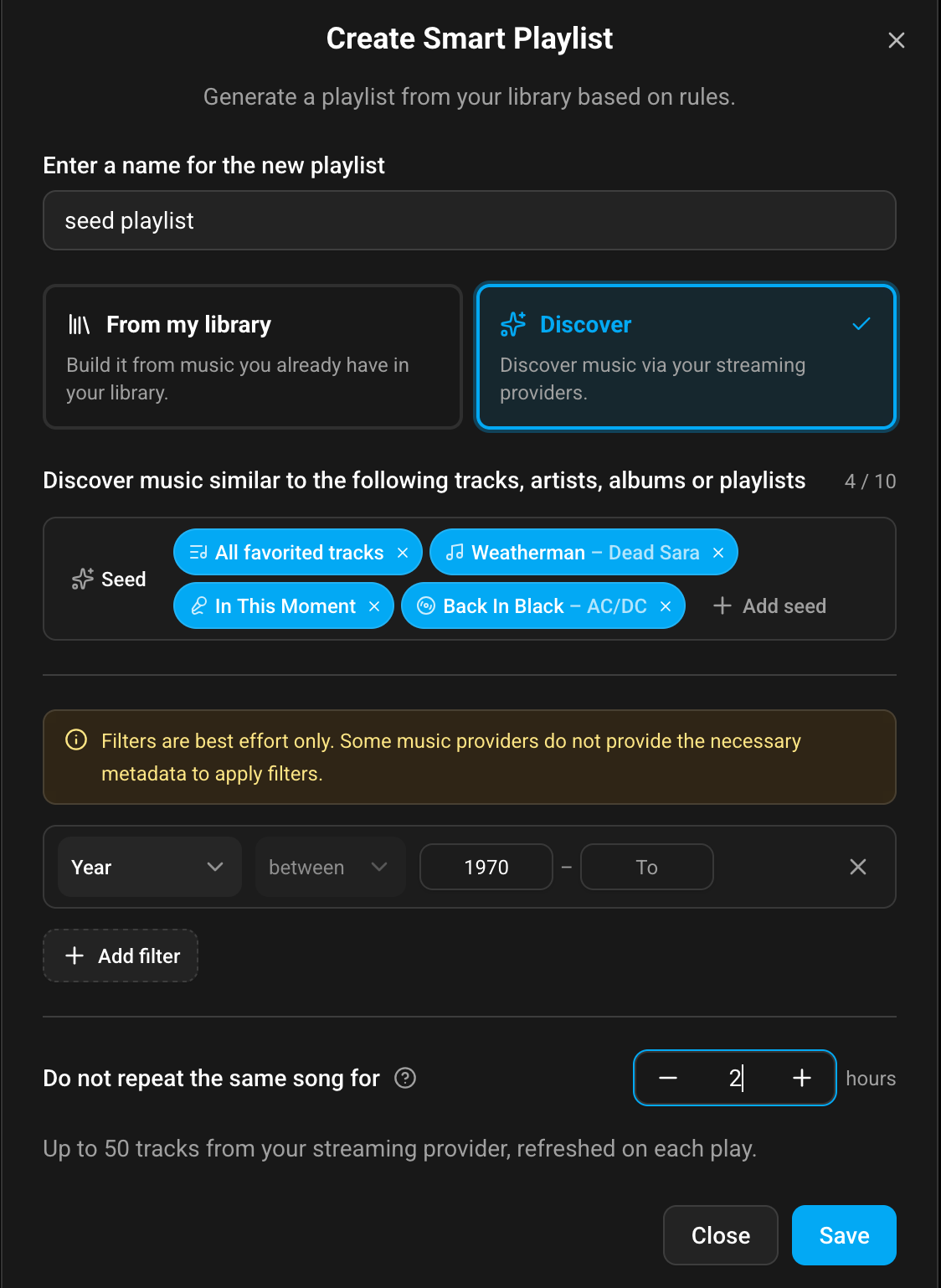
The screenshot above shows a Discover mode setup.
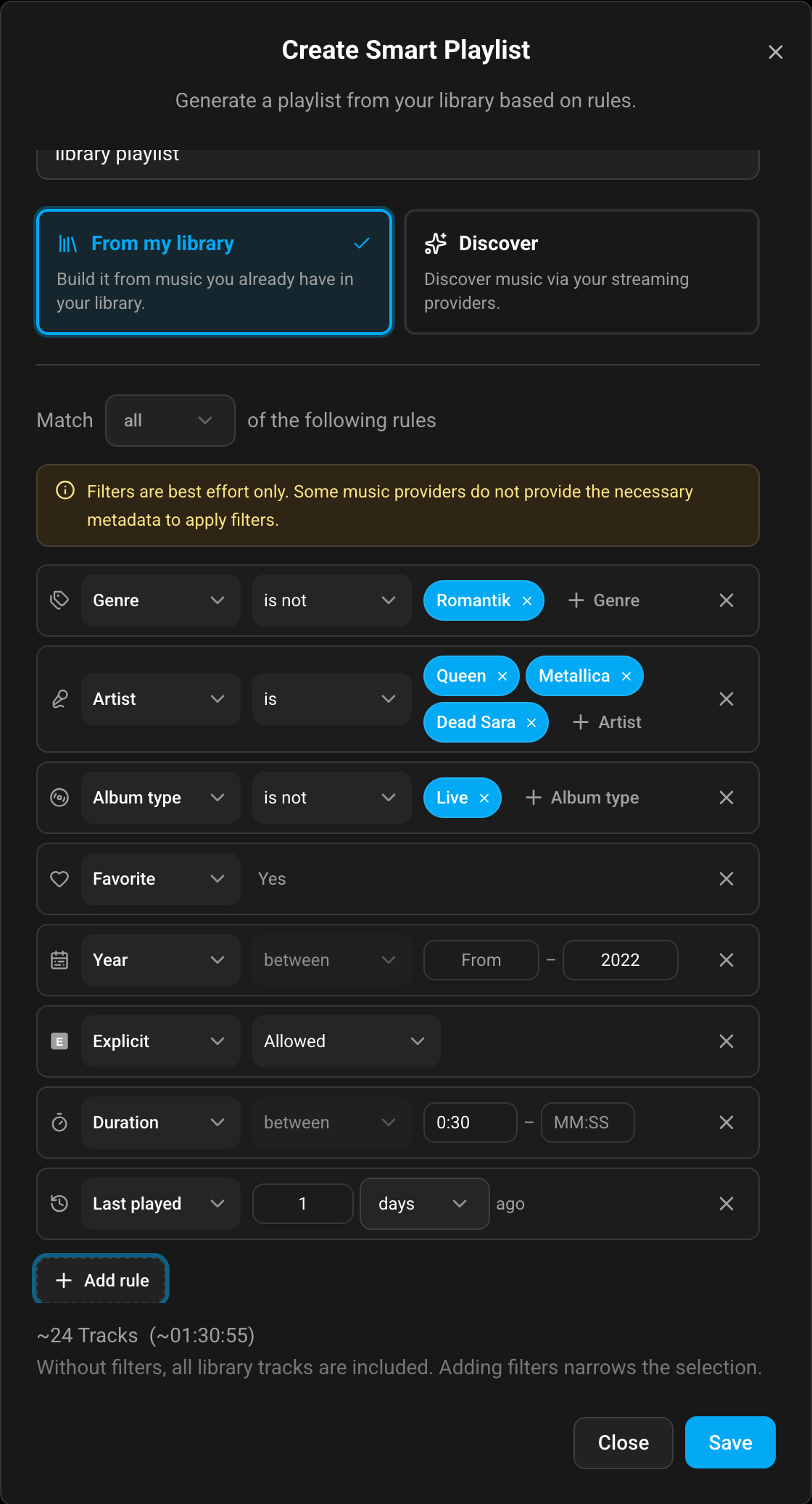
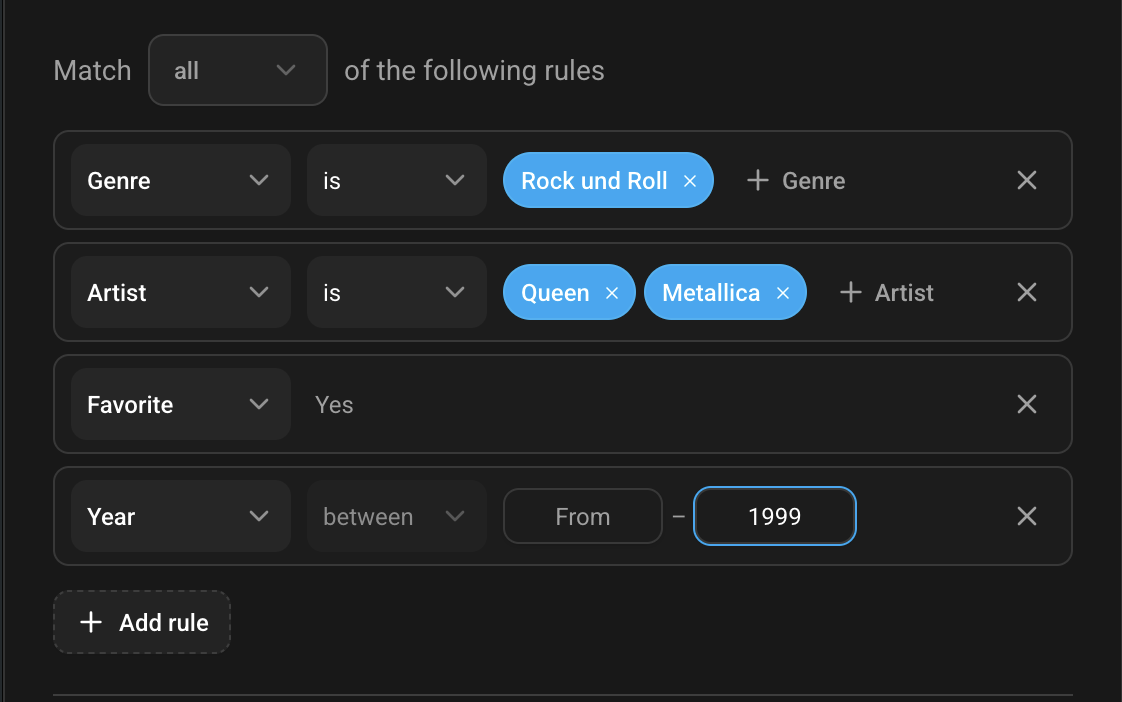
The screenshot above shows From my library mode (rule-based setup).
Enter a name and choose a source mode:
- From my library: build from tracks already in your MA library.
- Discover mode: use one or more seed items (tracks, artists, albums, or playlists) and fetch similar content from supported music sources.
Rule model
Section titled “Rule model”Smart playlists use include/exclude style rules. In From my library mode they are added with Add a rule, and in Discover mode with Add a filter:
- Genre: is / is not (one or more genres)
- Artist: is / is not (library mode, one or more artists)
- Album: is / is not (library mode, one or more albums)
- Album type: is / is not (filter by album type: album, single, EP, compilation, etc.)
- Explicit: filter tracks by explicit content marker (three options: allowed, explicit only, not allowed; provider-dependent)
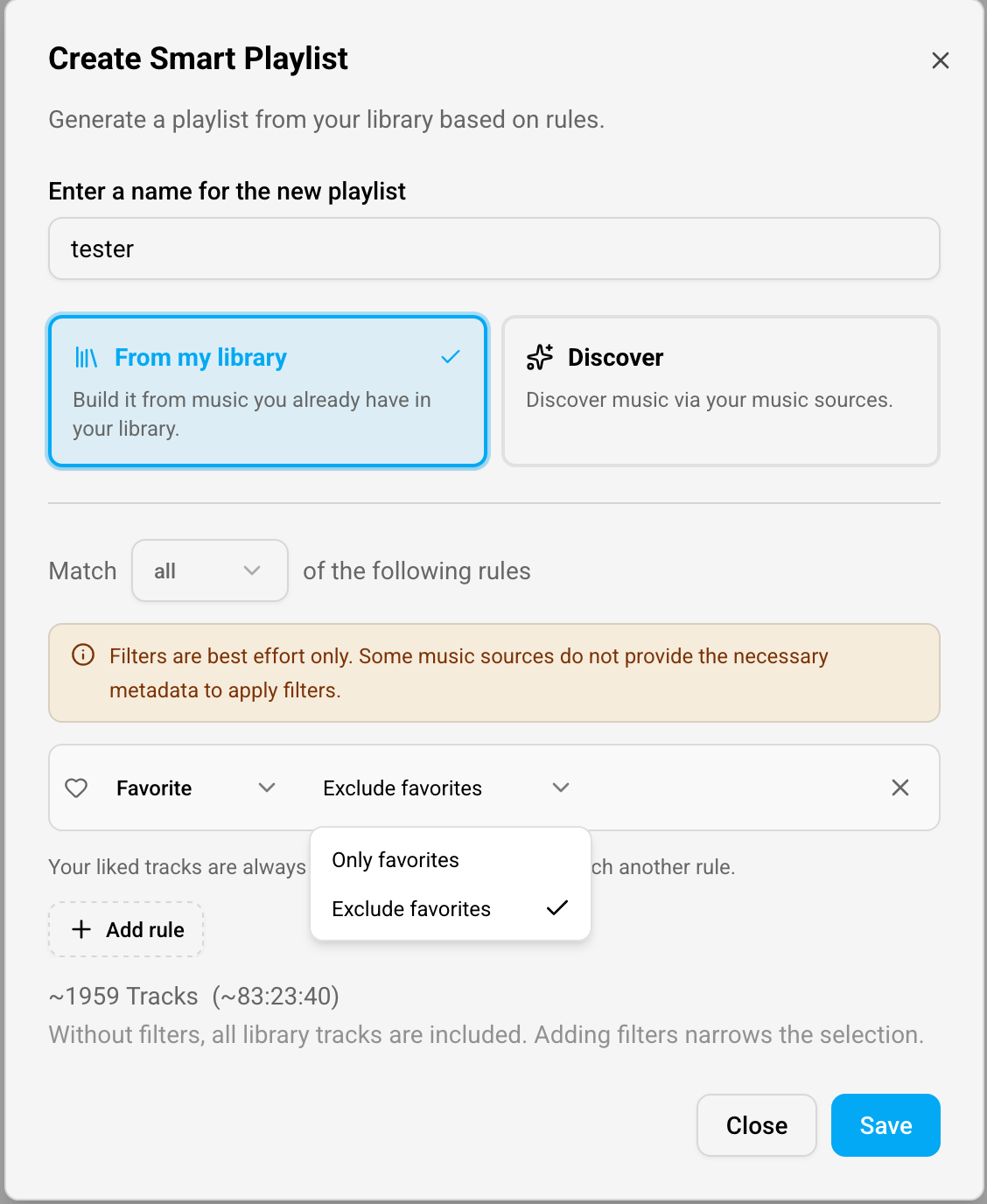
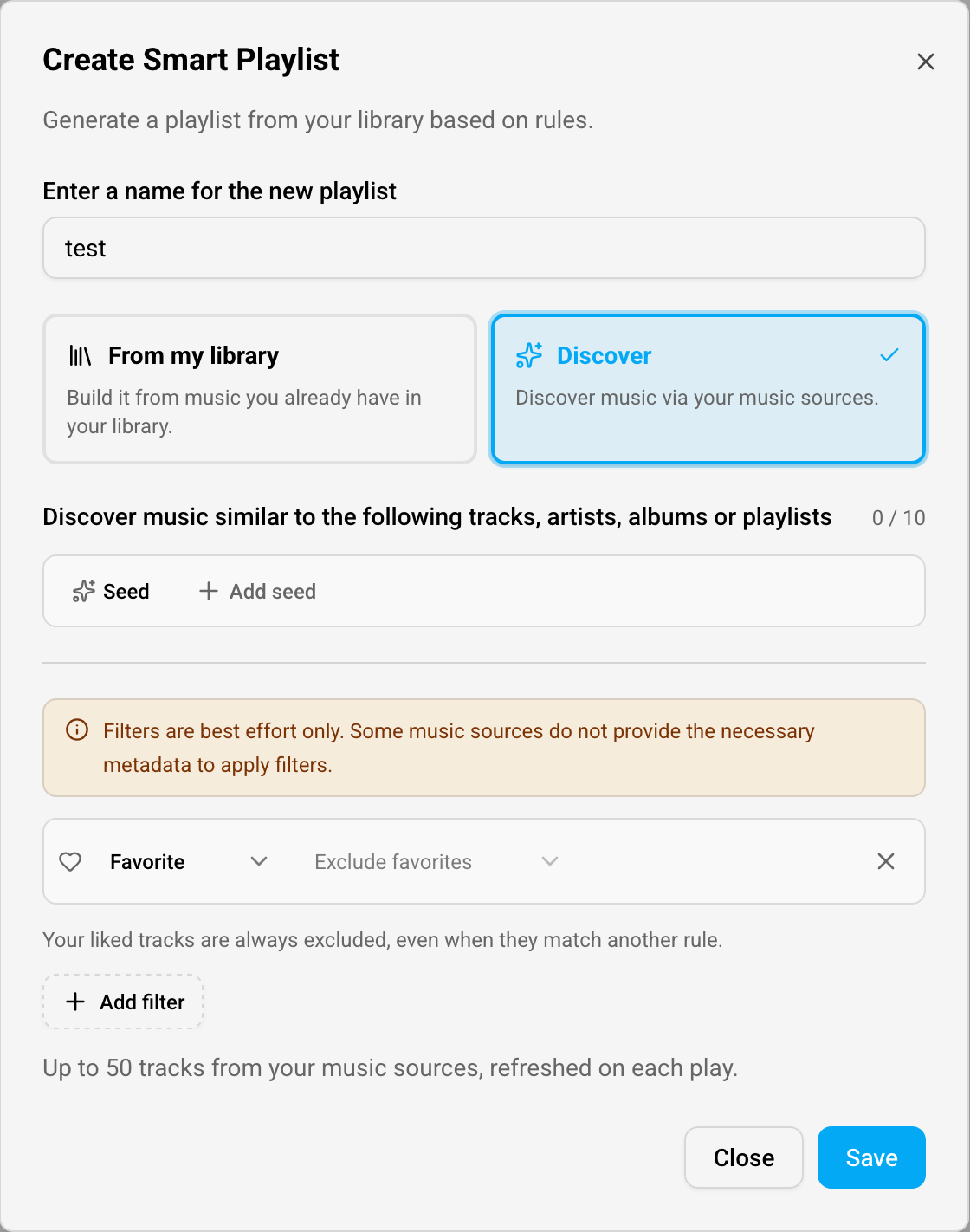
- Favorite: Only favorites (library mode) or Exclude favorites (library and Discover modes)
- Year: between from/to (it is possible to use only
fromor onlyto) - Duration: between from/to in MM:SS format (filter tracks by length)
- Last played: filter tracks by how recently they were played (e.g., “1 days ago”, “2 weeks ago”)
- Folder: is (library mode, one or more folders of a file-based music source, such as a local or network folder)
Album type examples:
- Album type is “Album”: only full-length albums (excludes singles, EPs, compilations)
- Album type is not “Single”: excludes all single releases
- Album type is “Album” or “EP”: includes full albums and EPs (excludes singles and compilations)
- Album type is “Live”: only live recordings/concerts
Available album types: Album, Single, EP, Compilation, Live, Soundtrack, Audiobook, Podcast, Unknown album type (albums without a specific type classification or where the music provider does not provide type information).
Favorite rule:
- Only favorites: include only your liked tracks. Available in From my library mode.
- Exclude favorites: leave out your liked tracks in either mode. Tracks you have disliked or not rated remain eligible.
- Excluding favorites always takes priority, even with Match any selected and a liked track matching another rule.
In From my library mode, add a Favorite rule and choose Exclude favorites:
In Discover mode, add a Favorite filter. It is set to Exclude favorites:
Folder rule:
The folder rule turns a folder structure into a playlist that stays up to date. It is meant for music that is organized by folder rather than by tags, for example:
- Your own groupings: a folder like
80sholds what you file under that decade, which does not always match the year tag (remasters, compilations). Folders likeParty,ChristmasorKidsdescribe something no tag does. - Moving over from a folder-based player such as foobar2000, MPD or Winamp: the folder structure you already have becomes your playlists, without rebuilding it in Music Assistant.
- Folders filled from outside, for example synced from a phone with Syncthing: new files show up in the playlist on their own.
How it works:
- Folder is “My Music/80s”: all tracks in the
80sfolder of that music source, including every subfolder. - New files added to the folder show up in the playlist after the next library sync.
- Open a music source and choose
Use this folderat its top level to use its whole library, or browse further in and chooseUse this folderat the level you want. - Combine it with the other rules, for example Folder is “My Music/80s” while excluding tracks played in the last 30 days (Last played), or Folder is “My Music/Party” and Favorite.
Explicit content filter options:
- Allowed: include both explicit and non-explicit tracks (no filtering)
- Explicit only: include only tracks marked as explicit content
- Not allowed: exclude all tracks marked as explicit content
Note: Explicit content filtering depends on your music provider supplying explicit markers in their metadata. Not all music providers include this information, and availability varies by provider and region. If your provider does not supply explicit markers, this filter will have no effect.
Year examples:
from: 1969means 1969 or newer.to: 1980means 1980 or older.
Duration examples:
from: 0:30means 30 seconds or longer (excludes very short tracks such as interludes).to: 5:00means 5 minutes or shorter.between: 3:00 and 6:00means tracks between 3 and 6 minutes.
Last played examples:
1 days agomeans tracks played within the last day.7 days agomeans tracks played within the last week.- Use this to create “recently played” playlists or to exclude tracks played recently.
In From my library mode you can choose whether tracks must match all rules or any rule.
In Discover mode, filters are applied to the provider result after similar content is fetched.
Discover mode
Section titled “Discover mode”Discover mode fetches similar content from your music sources based on seed items.
When using Discover mode:
- Add one or more seeds from tracks, artists, albums, or playlists.
- Seed lookups depend on provider support for the selected seed types.
- Results are sampled from provider output and refreshed on each play.
Track count and duration hint
Section titled “Track count and duration hint”The dialog shows a live estimate while you edit rules:
- From my library mode: live matching track count + duration estimate, updated as rules change.
- Discover mode: no live matching-count calculation; the UI only shows guidance that up to 50 tracks are fetched from your music sources.
The screenshot below shows From my library mode (rule-based smart playlist).

The screenshot below shows the Track Count hint for Discover mode.

Playlist detail
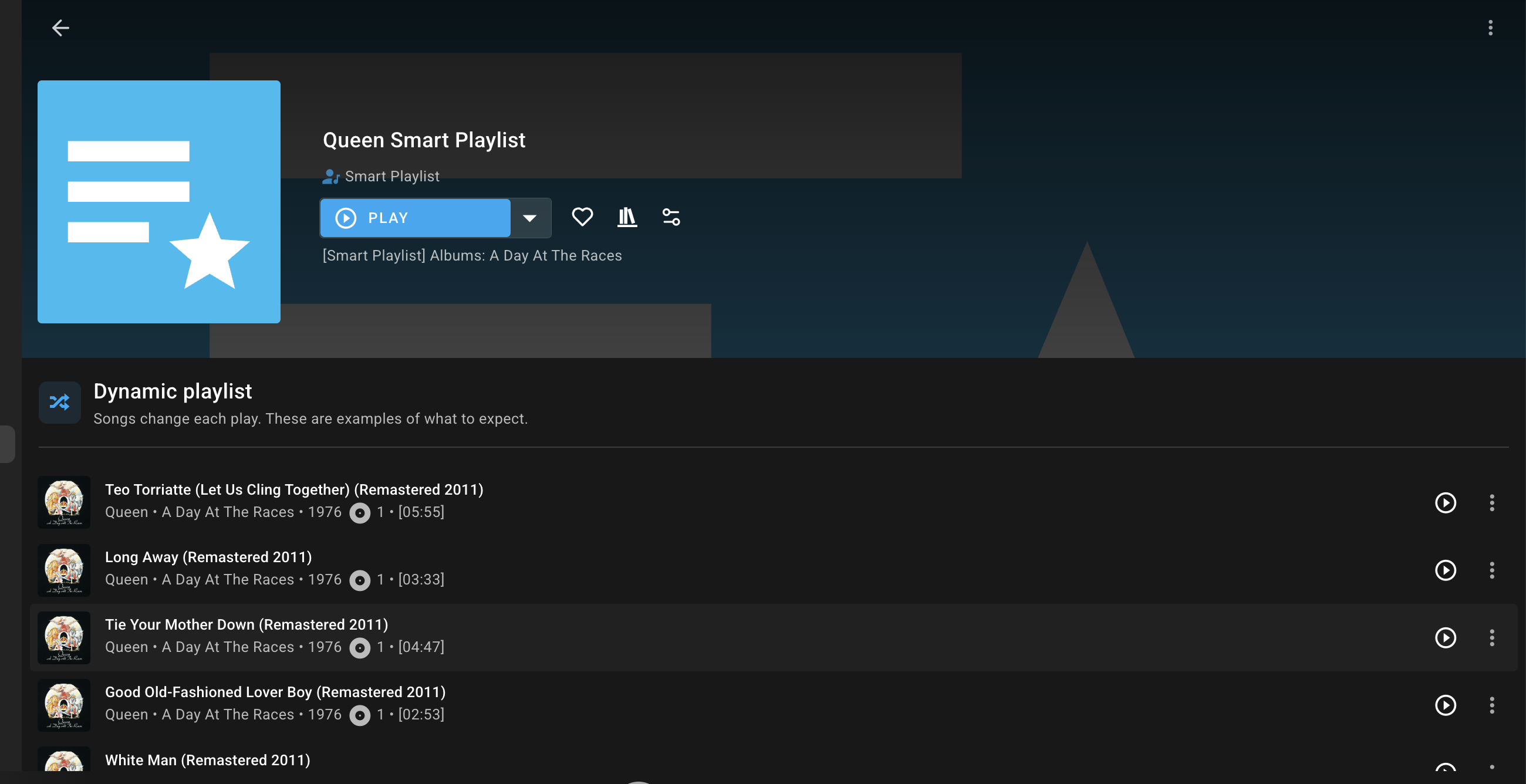
Section titled “Playlist detail”After saving, open the smart playlist to view a current sample output based on your rules. The Smart playlist rules button on the playlist’s page opens the rules again.
AI descriptions
Section titled “AI descriptions”The Smart Playlists provider settings have an AI descriptions option. With it switched on, Music Assistant writes a short description for each smart playlist from the rules you gave it, so the playlist says what it holds without you having to write that yourself.
This needs an AI engine, which comes from another plugin. Switching AI descriptions on reveals an AI engine picker directly beneath it. It follows the default AI engine from Settings → AI unless you pick one, and you can change it at any time.
- Smart playlists only exist as long as the Smart Playlists plugin is installed. Removing the plugin also removes associated smart playlists from the MA library.
This website uses privacy-first analytics to help us improve the site. You can view all data in our public dashboard.