

Library Recommendations
Section titled “Library Recommendations”Music Assistant surfaces recommendation rows based on what’s in your library and how you’ve been listening. These rows appear on the Discover page and help you find tracks, albums, and artists to play next.
NOTE
This is a built-in plugin that’s always enabled. It cannot be disabled, but you can choose which individual rows you want to see on your Discover page.
What’s available
Section titled “What’s available”Library Recommendations provides several discovery rows:
Recently played
Section titled “Recently played”- Recently played — Pick up where you left off
Recently added
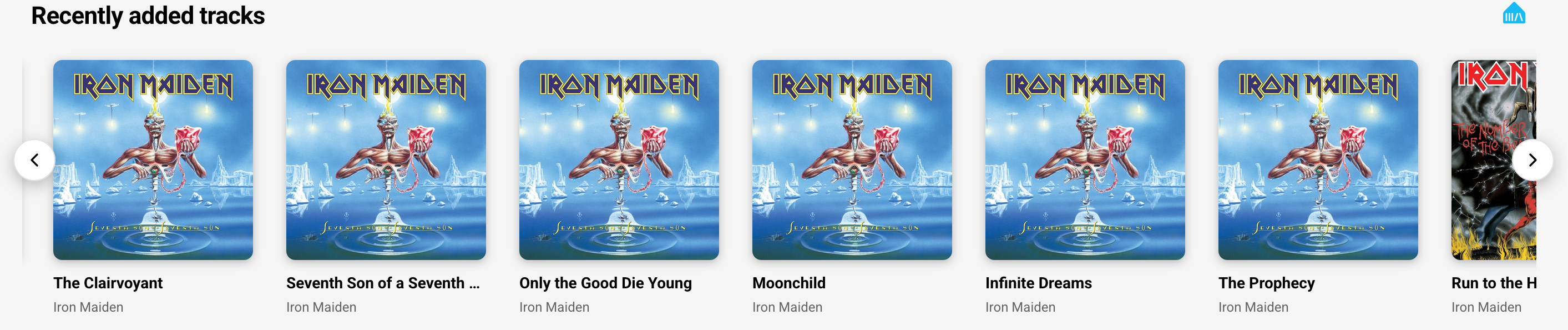
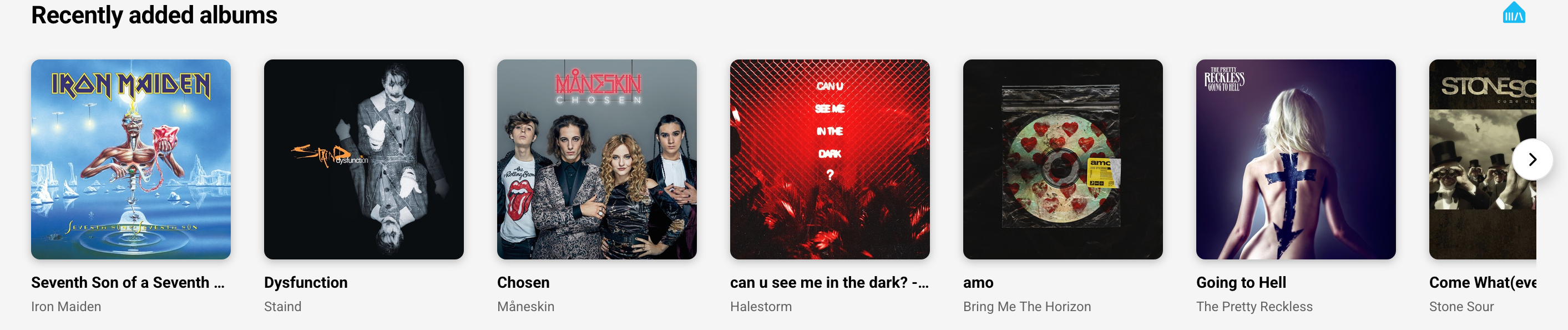
Section titled “Recently added”- Recently added tracks / Recently added albums — Your latest library additions
Favorites and collections
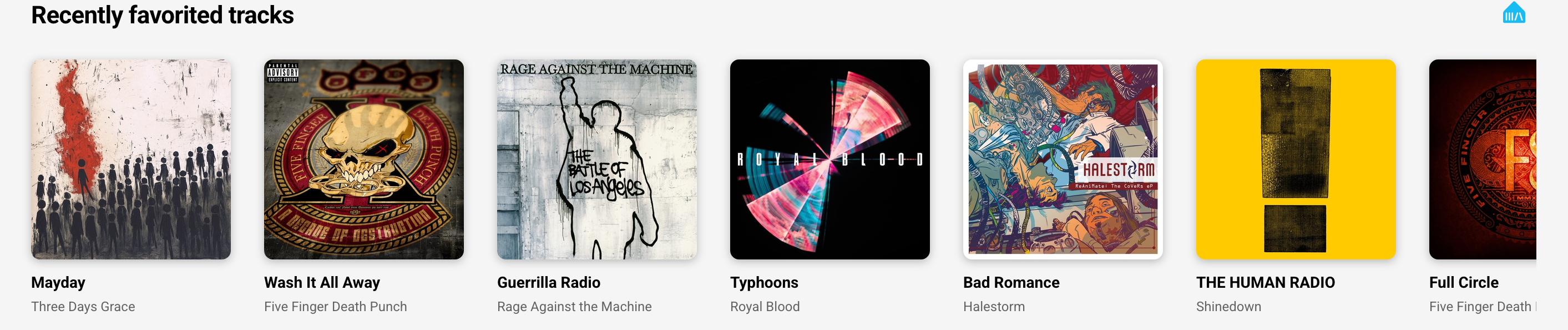
Section titled “Favorites and collections”- Recently favourited tracks — Tracks you recently marked as favourites
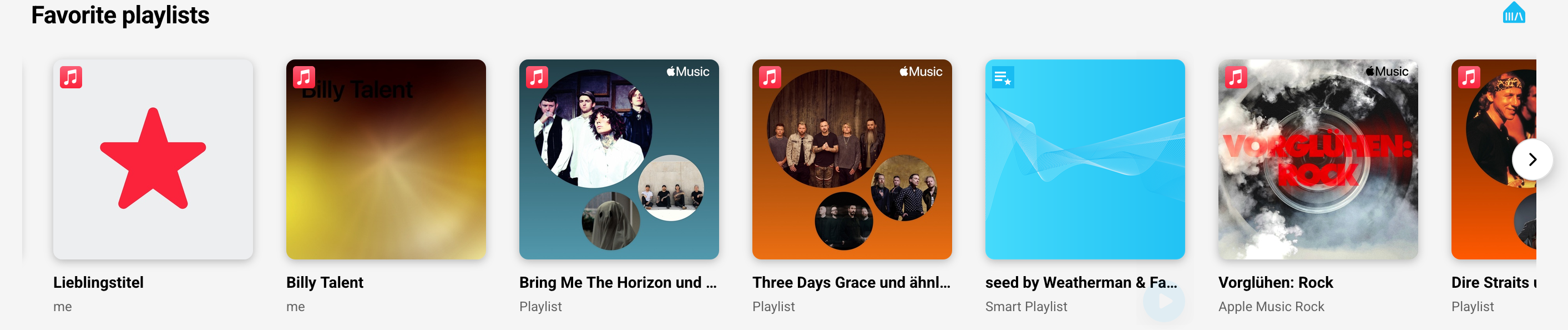
- Favourite playlists — Your favourite playlists, ready to play
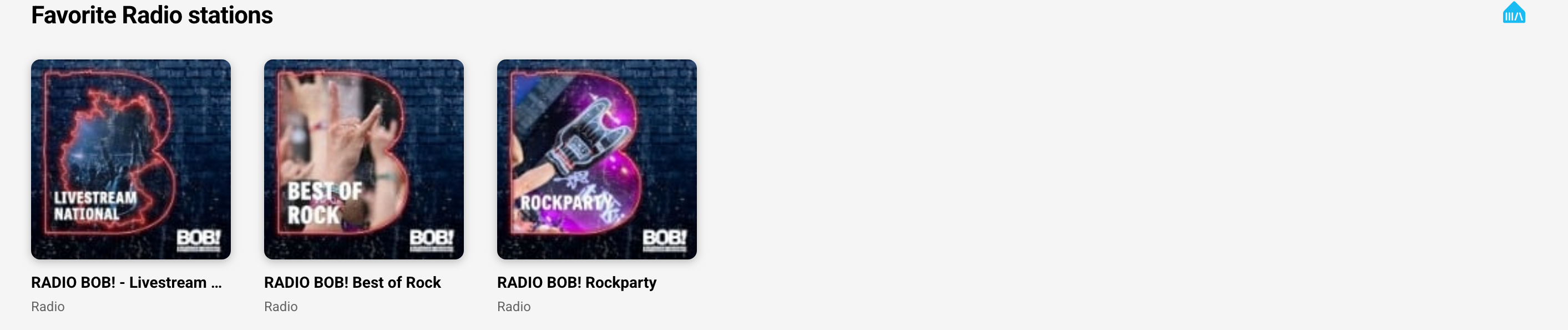
- Favourite Radio stations — Quick access to your favourite radio stations
Discovery and variety
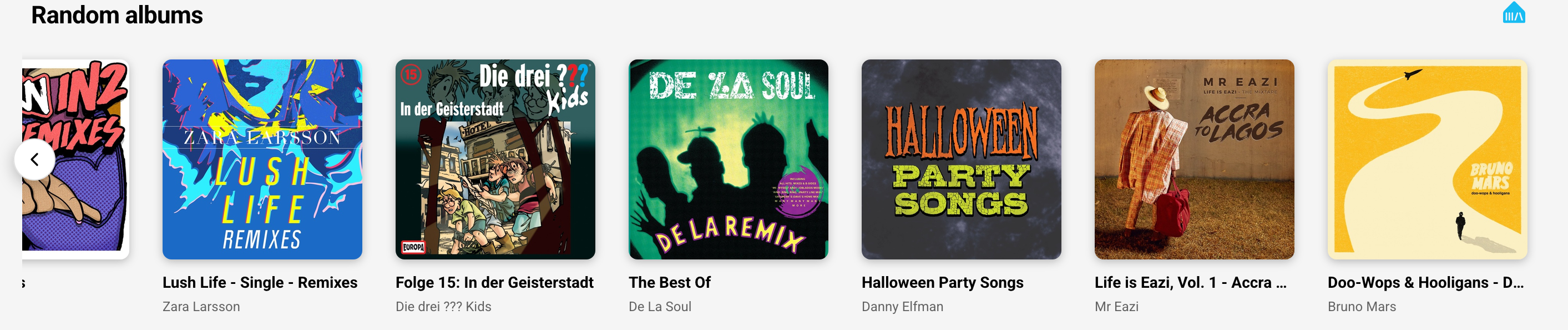
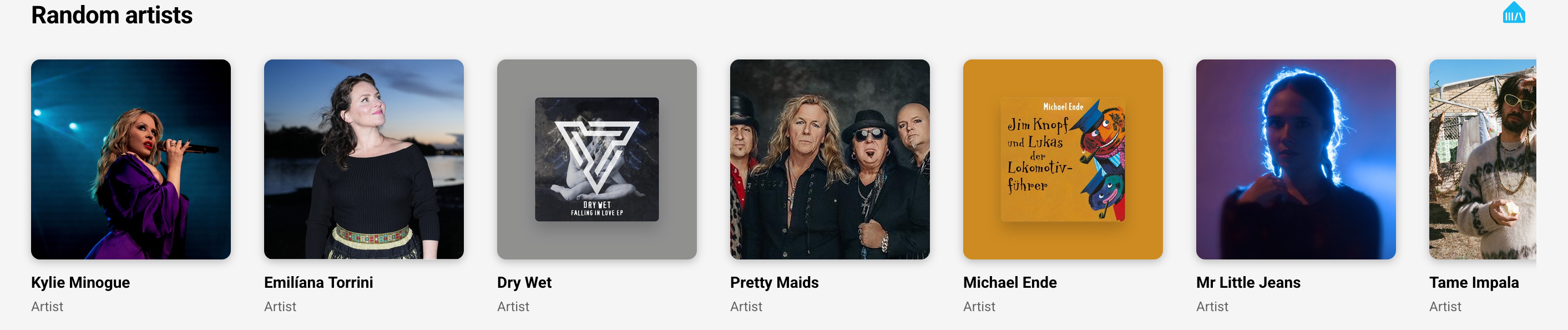
Section titled “Discovery and variety”- Random artists / Random albums — Discover something different from your library
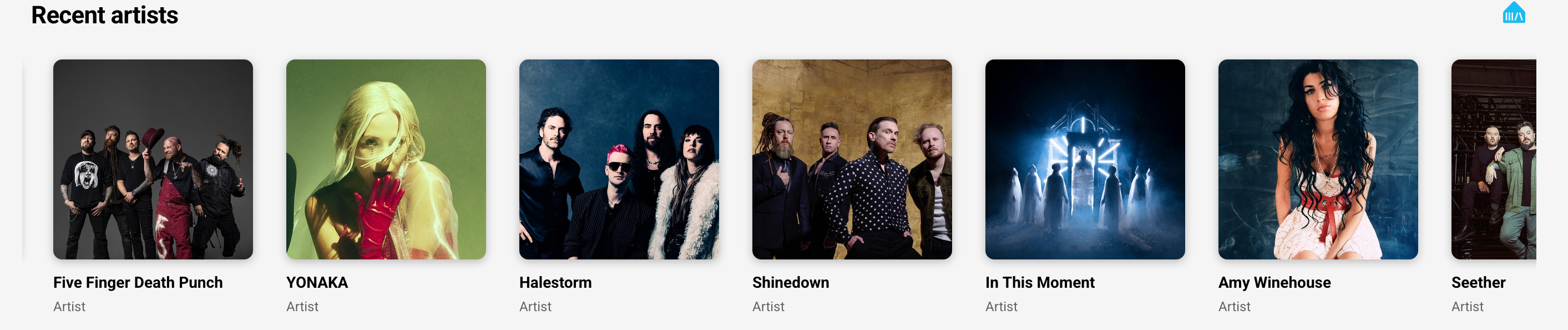
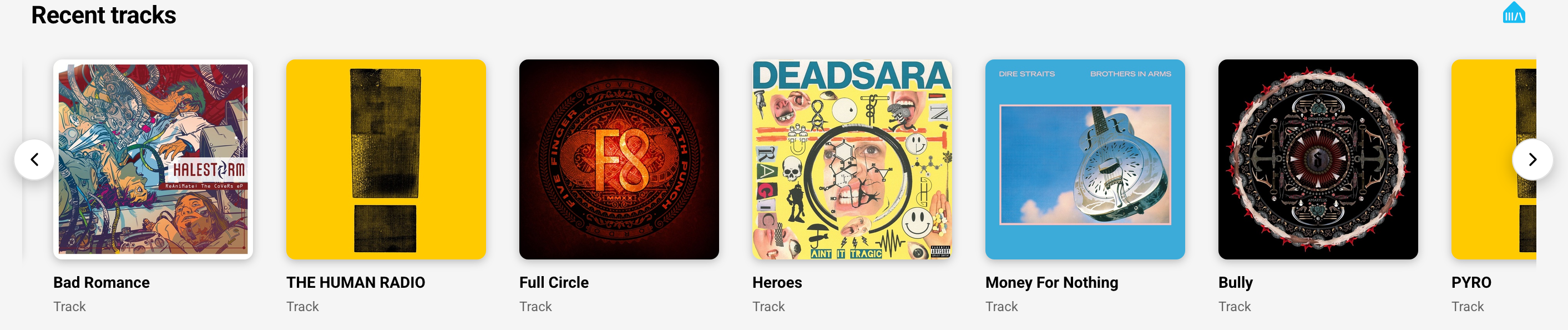
- Recent artists / Recent tracks — Artists and tracks from your recent listening
Rediscovery
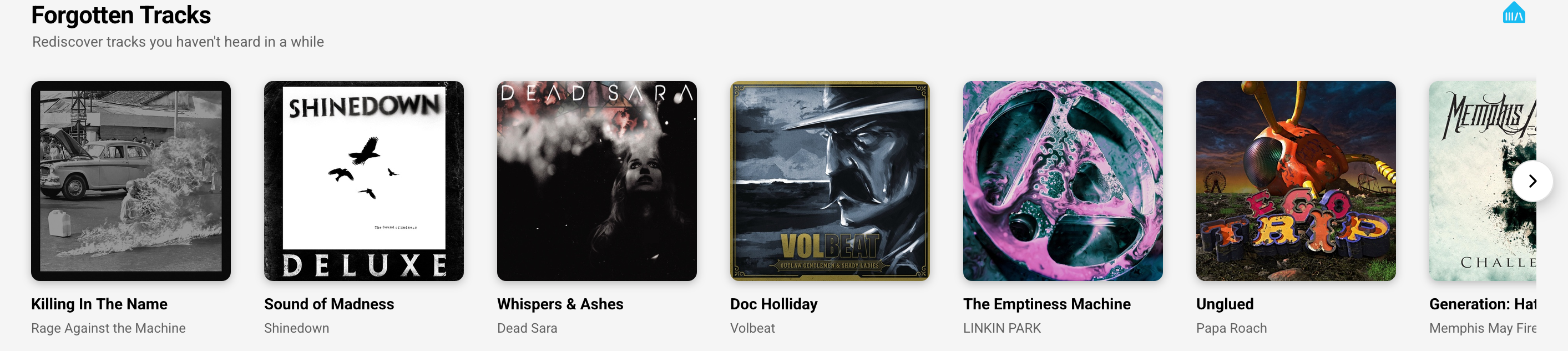
Section titled “Rediscovery”- Forgotten Tracks — Tracks you haven’t played in a while
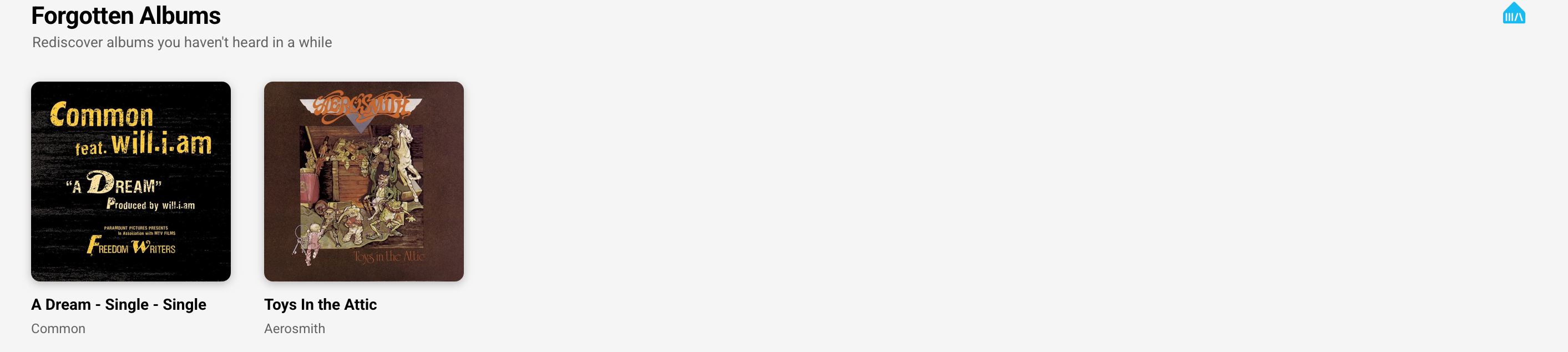
- Forgotten Albums — Albums you haven’t heard in a while
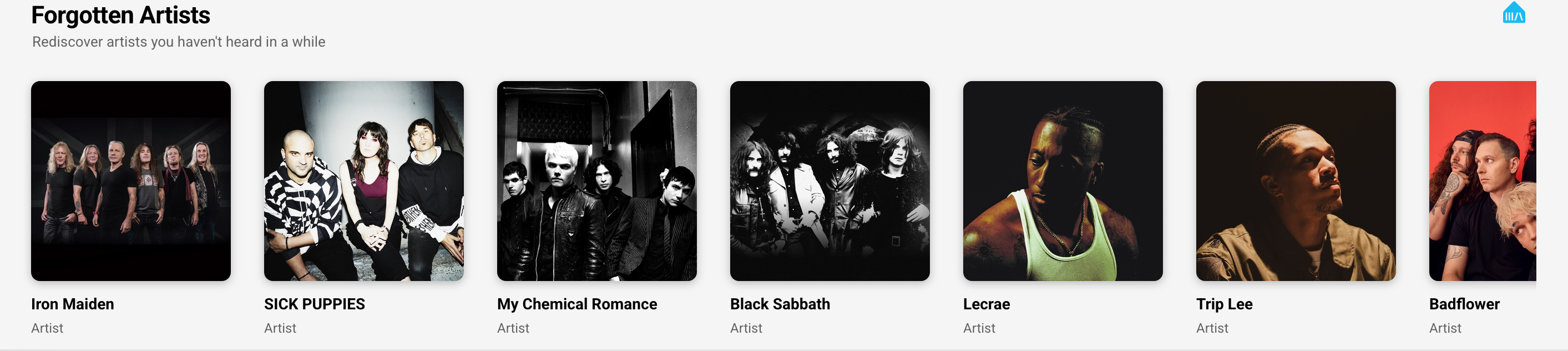
- Forgotten Artists — Artists you haven’t listened to recently
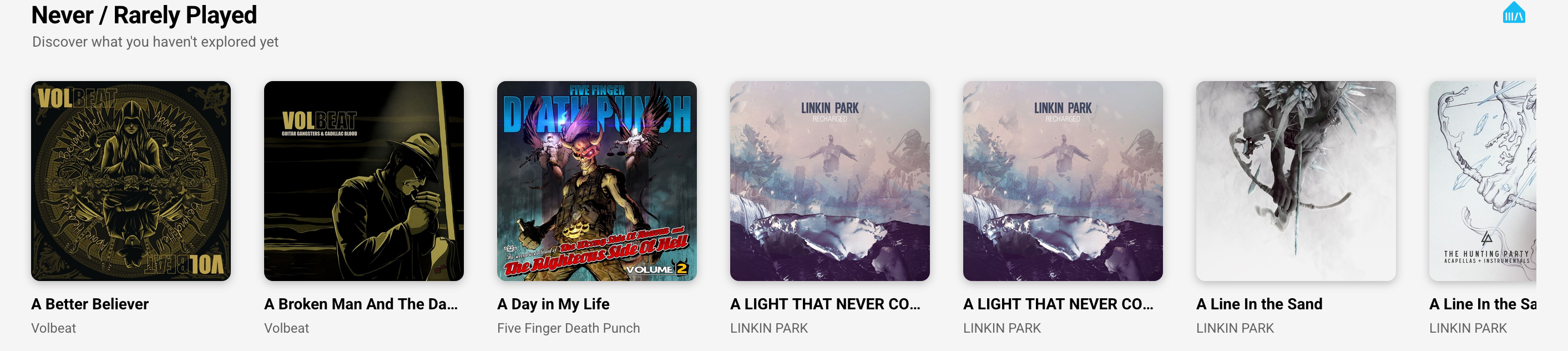
- Never / Rarely Played — Discover what you haven’t explored yet in your library
Top played
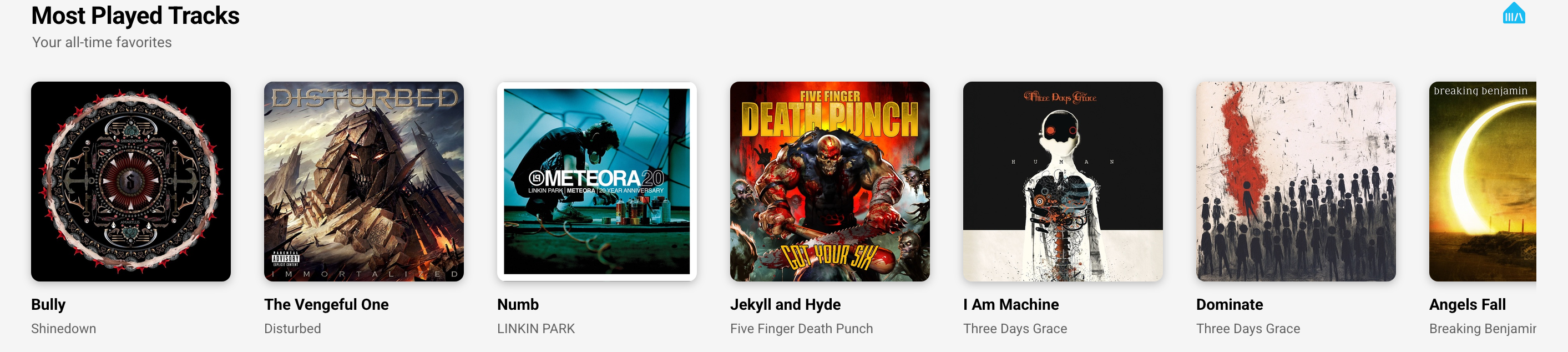
Section titled “Top played”- Most Played Tracks — Your all-time favorite tracks based on play count
How to use
Section titled “How to use”All recommendation rows can be toggled on or off individually:
- Go to your Discover page
- Select the pencil (Edit Home screen) button at the top right
- Each row now shows a drag handle to reorder it, an eye to show or hide it, and a filter icon
- Select Leave edit mode when done. The rows update automatically based on your listening
What you’ll see
Section titled “What you’ll see”The rows update automatically based on your listening:
- “Recently played” and similar rows refresh as you play new music
- “Forgotten” rows resurface items you haven’t heard in a while
- “Random” rows give you variety from your library
- “Most Played” shows your personal favorites over time
The rows only include music already in your Music Assistant library. For discovering new music you don’t own yet, check out the available music sources and metadata providers that offer recommendations.
This website uses privacy-first analytics to help us improve the site. You can view all data in our public dashboard.