

Spotify 
Section titled “Spotify ”Music Assistant has full support for Spotify media listing and playback.
Spotify is the largest of the music streaming services, with a catalogue of around 100 million tracks alongside podcasts and audiobooks.
Connecting your account puts your saved music and playlists into Music Assistant and makes the catalogue searchable.
NOTE
A Spotify Premium account is required, including Duo and Family. Free accounts will not work.
Playback engines
Section titled “Playback engines”Spotify audio can be played through two different engines. You choose one while adding the provider and can switch later by re-running the setup.
Spotify Soloist (official) — Spotify’s own playback engine for devices without a screen. It works with every Premium account, including accounts created since December 2024, and can deliver lossless audio. Setting it up needs a personal API key from the Spotify developer website and a one-off pairing with your Spotify app; the setup guides you through both.
NOTE
Music Assistant may not distribute Soloist as part of its own installation, so it is downloaded from Spotify’s servers on your behalf (after your consent in the setup) and updated automatically. Spotify’s terms do not clearly allow using Soloist this way — using it through Music Assistant is at your own risk.
librespot (community) — a community-built, reverse-engineered engine, and the default. The setup is a bit easier and it starts playing quicker, but it is intended for Premium accounts created before December 2024 and may stop working whenever Spotify changes things on their end.
Which one should I pick?
Section titled “Which one should I pick?”| Spotify Soloist | librespot | |
|---|---|---|
| Accounts created since December 2024 | Works | Usually will not play |
| Best audio quality | Lossless, up to 24-bit/44.1 kHz | Ogg Vorbis 320kbps |
| Setup | Terms, an API key and pairing | A one-time playback approval |
| Starting a queue, and seeking | Takes a little longer | Quick |
| Playing on two players at once | One at a time, per Spotify account | Supported |
With Soloist, the first song of a queue takes a little longer to start than with librespot, and so does seeking. Songs after it follow on without a break — though a podcast episode or an audiobook chapter start fresh.
librespot is preselected for a new setup, and stays selected for setups added before this choice existed.
Features
Section titled “Features”| Subscription FREE | No |
| Self-Hosted Local Media | No |
| Media Types Supported | Artists, Albums, Tracks, Playlists, Podcasts, Audiobooks |
| Recommendations Supported | No |
| Lyrics Supported | No |
| Endless Mix | Yes |
| Artist Top Tracks Support | Yes |
| Similar Artists Support | No |
| Similar Tracks Support | Yes |
| Maximum Stream Quality | Lossless, up to 24-bit/44.1 kHz (Soloist) |
| Login Method | OAuth |
- Searching the Spotify catalogue is possible
- “New Releases” and “Genres and Moods” folders are available in the Browse view
- Items in your Spotify library (including the Liked Songs playlist) will be added to the Library in Music Assistant
- Adding an item from Spotify to the Music Assistant Library will also add it to “Your Library” in Spotify
- Marking an item as a favourite in Music Assistant will also add it to the MA Library and “Your Library” in Spotify
- Multiple Spotify accounts can be added. All playlists from all accounts will be shown. If a playlist is selected for playback the source Spotify account will be used
Configuration
Section titled “Configuration”Basic setup
Section titled “Basic setup”-
Add the Spotify source via Settings → Music sources → Add a music source.
-
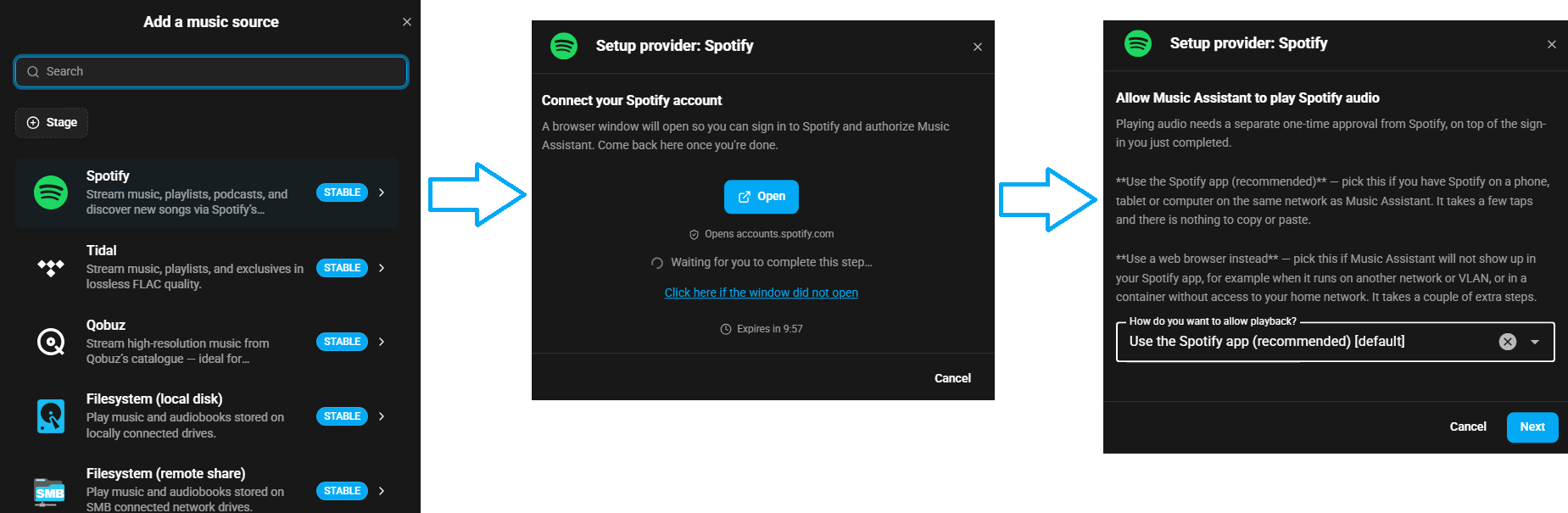
Follow the on screen instructions which should take you through the initial flow shown here
-
Choose how Spotify audio should be played.
librespot (community)continues with the one-time playback approval below;Spotify Soloist (official)continues with its own steps instead.
librespot: the one-time playback approval
Section titled “librespot: the one-time playback approval”Playing audio needs a separate approval from Spotify, on top of the sign-in you just completed.
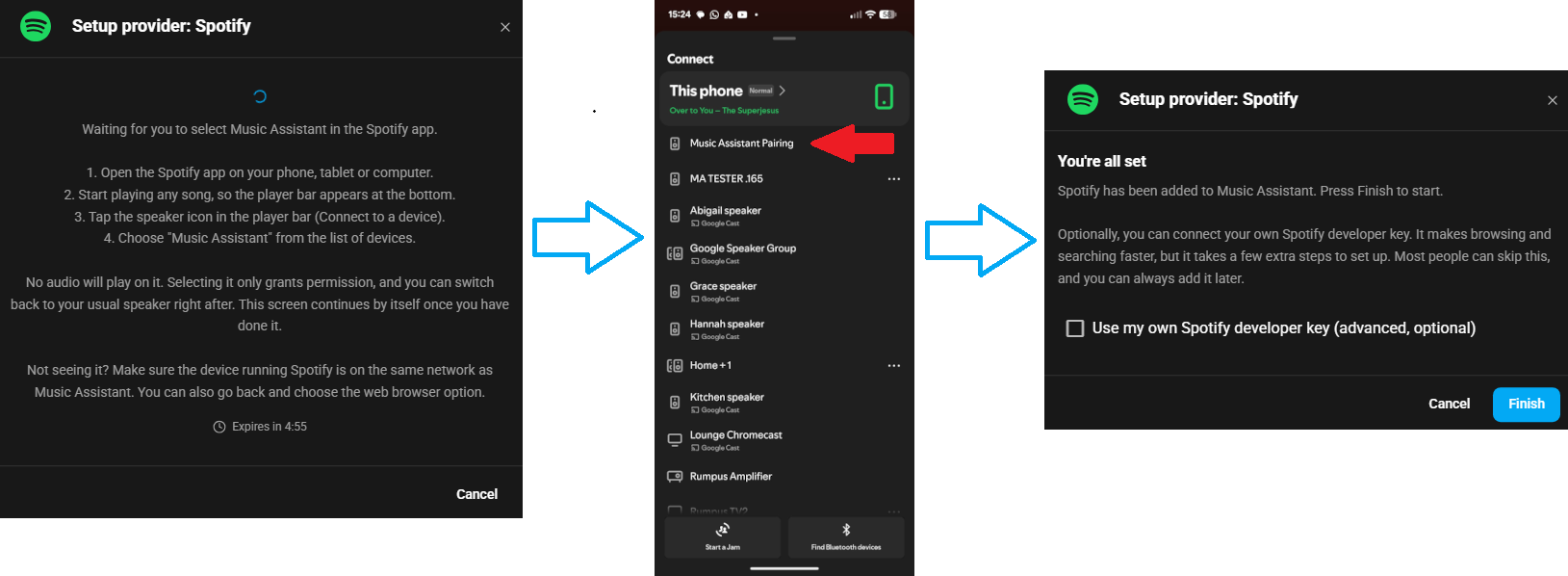
Use the Spotify app for this. It is a couple of taps and it is the smoother of the two routes. The web browser alternative is there for networks where your phone cannot reach the Music Assistant server, and it is more fiddly.
I clicked - Use the Spotify App (recommended)
NOTE
Your mobile device must be on the same network as the MA server for this to work
I clicked - Use a web browser instead (only if the app route will not work)
NOTE
The webpage error is shown in step 3 is normal. You then need to copy the entire URL from that browser tab and paste it into the dialog shown in the MA UI
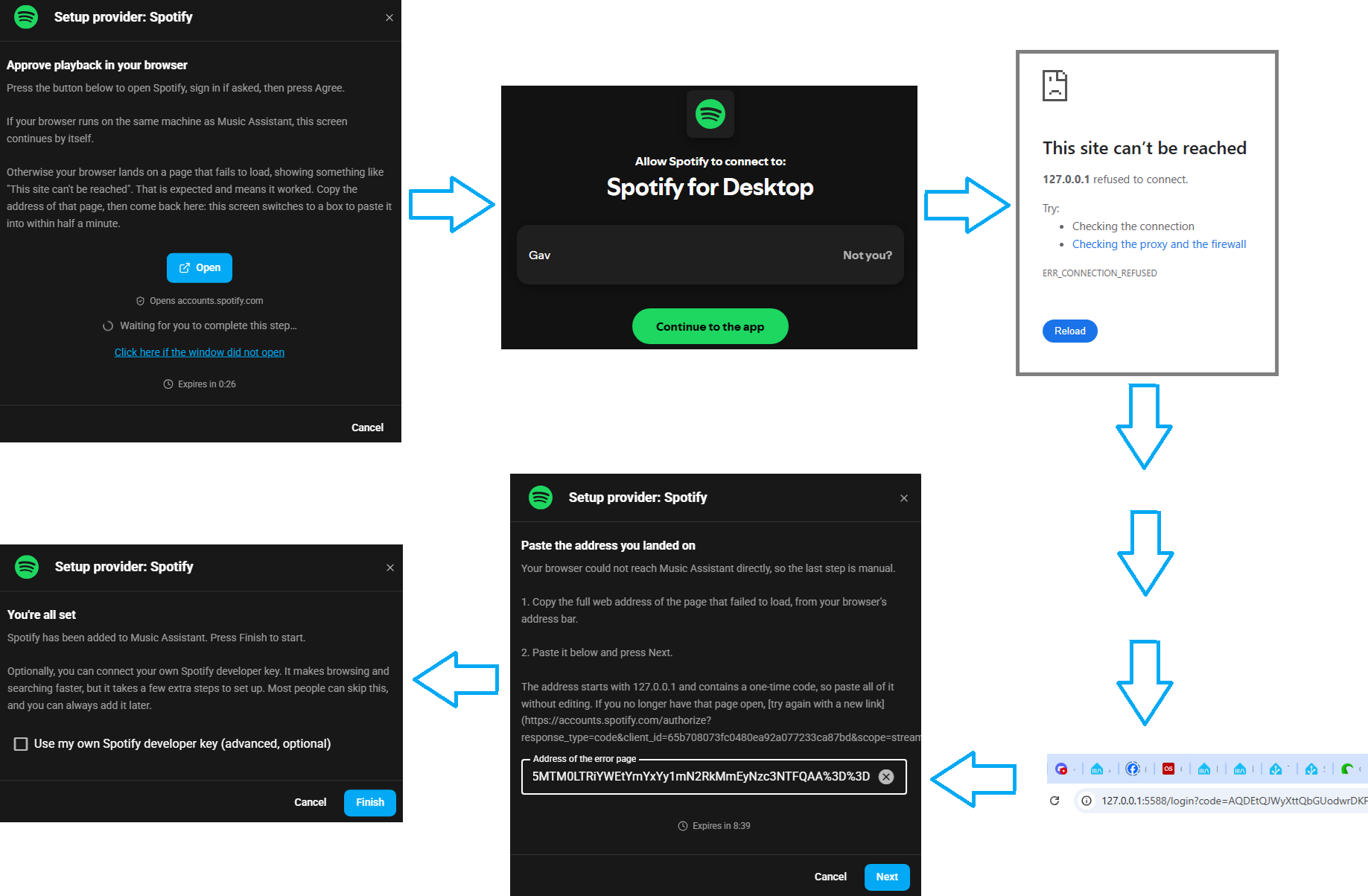
Spotify will now work, but consider the optional step further below or click Finish and then Done.
Setting up Spotify Soloist
Section titled “Setting up Spotify Soloist”Choosing Soloist replaces the playback approval above with three steps of its own:
- Read and accept the terms. Soloist is downloaded from Spotify’s servers and run on your behalf, and Spotify’s terms do not clearly allow this. You have to agree before the setup continues.
- Create your API key. Open the Soloist API key page, sign in, accept Spotify’s terms if asked, choose
Generate API Keyand paste the key into Music Assistant. Creating the key needs a Premium account. Music Assistant stores it encrypted and only shares it with the Soloist app — your Spotify password is never asked for. - Pair with your Spotify app. Music Assistant advertises itself as
Music Assistant Pairing. In the Spotify app, start playing anything, tap the speaker icon and chooseMusic Assistant Pairing. The setup then continues by itself and you can switch back to your usual speaker straight away.
IMPORTANT
Pair from a Spotify app signed in to the same account you connected in the first step, so your music library and the audio come from the same place. Music Assistant checks this and will ask you to pair again if the accounts do not match.
NOTE
Not seeing Music Assistant Pairing? Make sure the device running the Spotify app is on the same network as the Music Assistant server.
Optional: add a personal Client ID
Section titled “Optional: add a personal Client ID”Music Assistant shares one allowance from Spotify with everybody else using it, and Spotify limits how fast that allowance can be used. Registering your own free Client ID gives you an allowance of your own, which may make everything quicker but it does have some potential problems detailed in the known issues section.
- Complete the basic setup above, then check
Use my own Spotify developer key (advanced, optional)and click finish. - A new dialog will open where you must add your own Client ID.
- Create an app on Spotify’s developer dashboard. When filling in the app details, the only field that matters is the
Redirect URL. Set it exactly tohttps://music-assistant.io/callback. - Enter the Client ID from your new app in the dialog you saw after completing step 2, then click
Finishand thenDone.
Settings
Section titled “Settings”Refer to the Library Import Control settings.
Two extra settings appear when Spotify Soloist is the playback engine:
- Streaming quality — the highest quality Spotify is asked to stream, defaulting to
Lossless. This is a ceiling rather than a promise: Spotify still picks something lower on a slow connection, when a song has no file at that quality, or when your plan does not include it. Podcasts and audiobooks are always Ogg Vorbis. Takes effect the next time playback starts. - Enable Spotify’s volume normalization — on by default. Spotify evens out the loudness between songs using values computed for its whole catalogue, and Music Assistant then leaves the level alone instead of correcting it twice, which also makes songs start noticeably quicker. Turn it off to have Music Assistant do it instead, the same way it does for every other music source. Either way it only applies while volume normalization is enabled for the queue.
Crossfade is not set here — enable it for the player as usual, and it works the same as for every other music source.
Known Issues / Notes
Section titled “Known Issues / Notes”- Premium is required, including Duo and Family. Free accounts will not work
- Accounts created around December 2024 and later generally cannot play through librespot, and some older accounts are affected too. If playback fails and you see
Key Errormessages in the log, that is the symptom — choose Spotify Soloist instead - Spotify Soloist cannot be used on hosts with Docker bridge networks
- Each Spotify Soloist account plays one thing at a time. Starting Spotify on a second player asks you to stop the first one; a second Spotify account added as its own source has a session of its own
- While Spotify Soloist is playing, Music Assistant shows up in your Spotify app as a device called
Music Assistant Playback. Pausing or skipping there interferes with playback, so use Music Assistant’s own controls - With Spotify Soloist, starting a queue or seeking takes a little longer than with librespot
- When you first save the source, Music Assistant checks whether your account has audiobooks. If it does, audiobook options appear the next time you open the settings
- Spotify does not give Music Assistant any recommendations, so the Discover view will have nothing from Spotify in it
- Spotify does not tell Music Assistant what genre anything is
- Podcast transcripts are not available
This website uses privacy-first analytics to help us improve the site. You can view all data in our public dashboard.