

Convolution
Section titled “Convolution”Convolution applies a recorded impulse response to the audio. An impulse response, usually shortened to IR, is a recording of how a particular space or piece of equipment reacts to a single, very short sound. Playing music through that recording makes the music take on the same character, which is why convolution is the tool of choice for room correction, speaker correction and headphone simulation. A more detailed explanation can be found in this description of impulse responses.
Unlike the other filters, convolution does not shape the sound according to controls that are set by hand. The correction is contained entirely within the impulse response file, which is typically produced by measurement software such as Room EQ Wizard, or downloaded from a project that publishes ready-made responses.
This filter is added and configured in the DSP settings for a player. See the Digital Signal Processing overview for the full filter path.
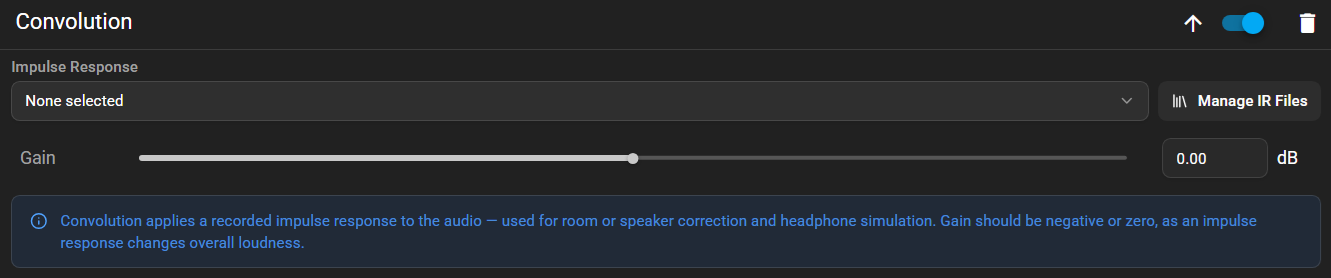
The filter has two controls: the impulse response to apply, and a gain adjustment.
Impulse Response
Section titled “Impulse Response”The dropdown lists every impulse response that has been uploaded to the server, showing the sample rate, channel count and duration of each. Selecting one applies it to the audio.
A newly added filter starts with None selected, which leaves the audio untouched, so an impulse response must be chosen before the filter does anything. If a response is shown as Unavailable impulse response, the filter is referring to a file that no longer exists on the server, which most commonly happens when a DSP preset created on another server is loaded.
An impulse response almost always changes the overall loudness of the audio, and frequently raises it. The Gain control compensates for this, and should be set to zero or a negative value; raising it risks clipping. Where a measurement tool suggests a particular amount of attenuation for its correction file, that value should be entered here.
Managing Impulse Response Files
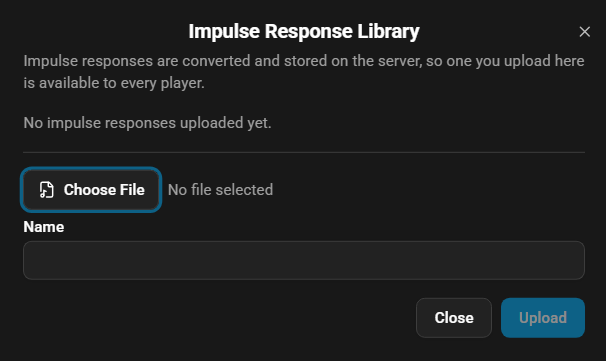
Section titled “Managing Impulse Response Files”Impulse responses are stored on the server rather than within an individual player’s settings, so a file only needs to be uploaded once and is then available to every player and every DSP preset. The library is opened with the MANAGE IR FILES button next to the dropdown.
Uploading
Section titled “Uploading”Choosing a file and giving it a name adds it to the library. The name is only a label, and is what appears in the dropdown, so something descriptive such as the room or headphone the response was measured for is more useful than the original filename.
Most common audio formats are accepted, with WAV and FLAC being the usual choices. On upload the file is converted to a standard format and stored on the server, and is checked in the process, so a file that is not valid audio will be rejected with an explanation rather than failing silently later during playback. Files may be up to 50 MB in size, which is far larger than any normal impulse response requires.
The sample rate of the file does not need to match the audio being played, as the impulse response is resampled to suit the stream. A mono response is applied identically to both channels, whereas a stereo response applies each of its channels to the matching side of the audio, which is what measurement software produces when the left and right speakers are measured separately.
Only mono and stereo files are accepted. So-called true stereo impulse responses, which carry four channels to describe how each speaker reaches each ear, are rejected on upload with a message explaining why. Applying one would require reducing it to two channels first, which blends the four measurements together and does not reproduce the intended effect, so a mono or two channel version of the same measurement should be used instead.
Deleting
Section titled “Deleting”The delete icon beside an entry removes it from the library. Because the library is shared, a file may be in use by more than one player, so deleting it also resets any convolution filter that referred to it, on every player and in every preset, back to no impulse response selected. The filters themselves are not removed, and will pass audio through unchanged until another response is chosen.
Technical Details
Section titled “Technical Details”The convolution is performed by FFmpeg’s afir filter, with the impulse response supplied as a second input and resampled to the sample rate of the stream. Gain normalisation is applied so that the convolution itself is unity gain, meaning any change in level comes from the response of the file rather than from the process. Because convolution is considerably more demanding than the other filters, particularly with long impulse responses, servers with limited processing power may struggle when several players are streaming at once.
This website uses privacy-first analytics to help us improve the site. You can view all data in our public dashboard.