

AudioMuse-AI
Section titled “AudioMuse-AI”Music Assistant has support for AudioMuse-AI. Contributed and maintained by NeptuneHub
AudioMuse-AI is a self-hosted server that analyses the music on your Jellyfin, Navidrome or Plex server and works out which tracks sound alike. It runs on your own hardware, next to the media server it reads from.
The plugin connects Music Assistant to that server. Similar tracks, the discover row and free-text search then come from AudioMuse-AI’s analysis of your library, without Music Assistant analysing anything itself. If you would rather do the analysis inside Music Assistant, the Sonic Similarity plugin does the same job locally.
Features
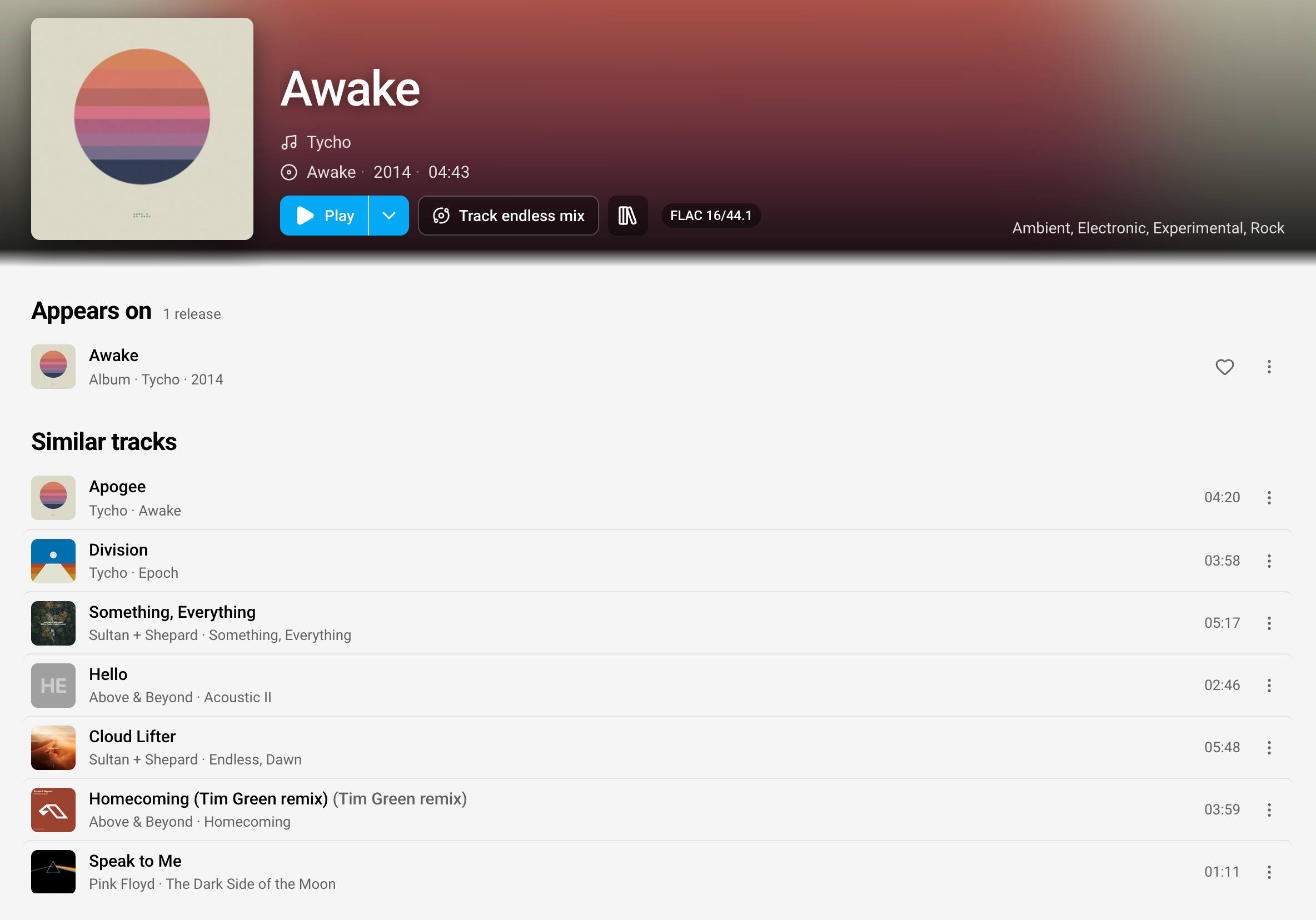
Section titled “Features”- Similar Tracks for your media server library. Every track AudioMuse-AI has analysed gets a Similar tracks list on its details page, including tracks from servers that have no similar tracks of their own. Where the media server does have its own, AudioMuse-AI’s suggestions are used first.
- Endless Mix and Autoplay. The same results are used when Endless Mix or Autoplay needs more tracks similar to what you started from.
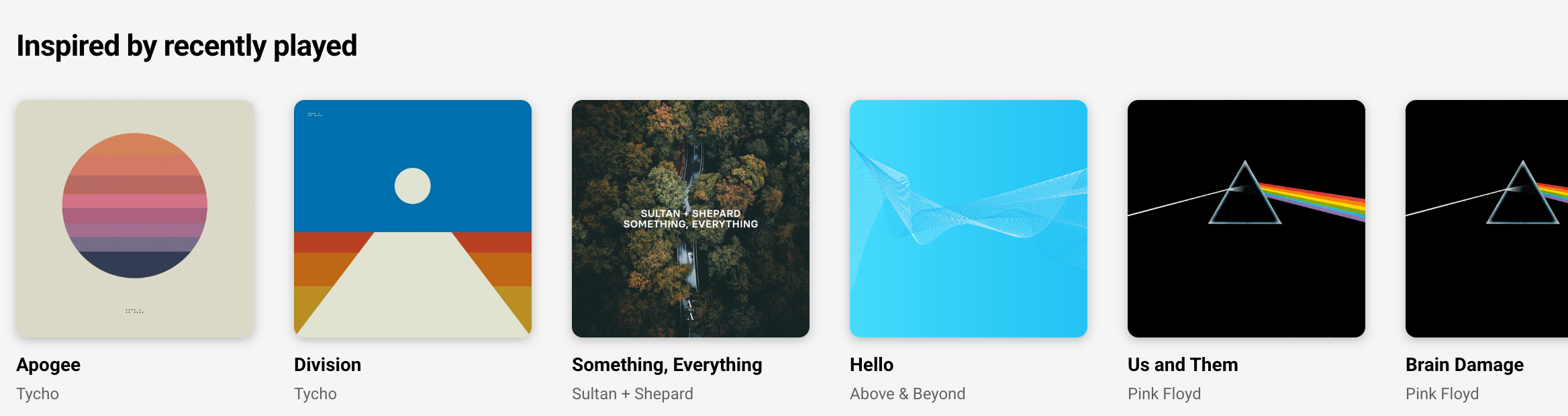
- An “Inspired by recently played” row on the Discover page, built from the last five tracks you played.
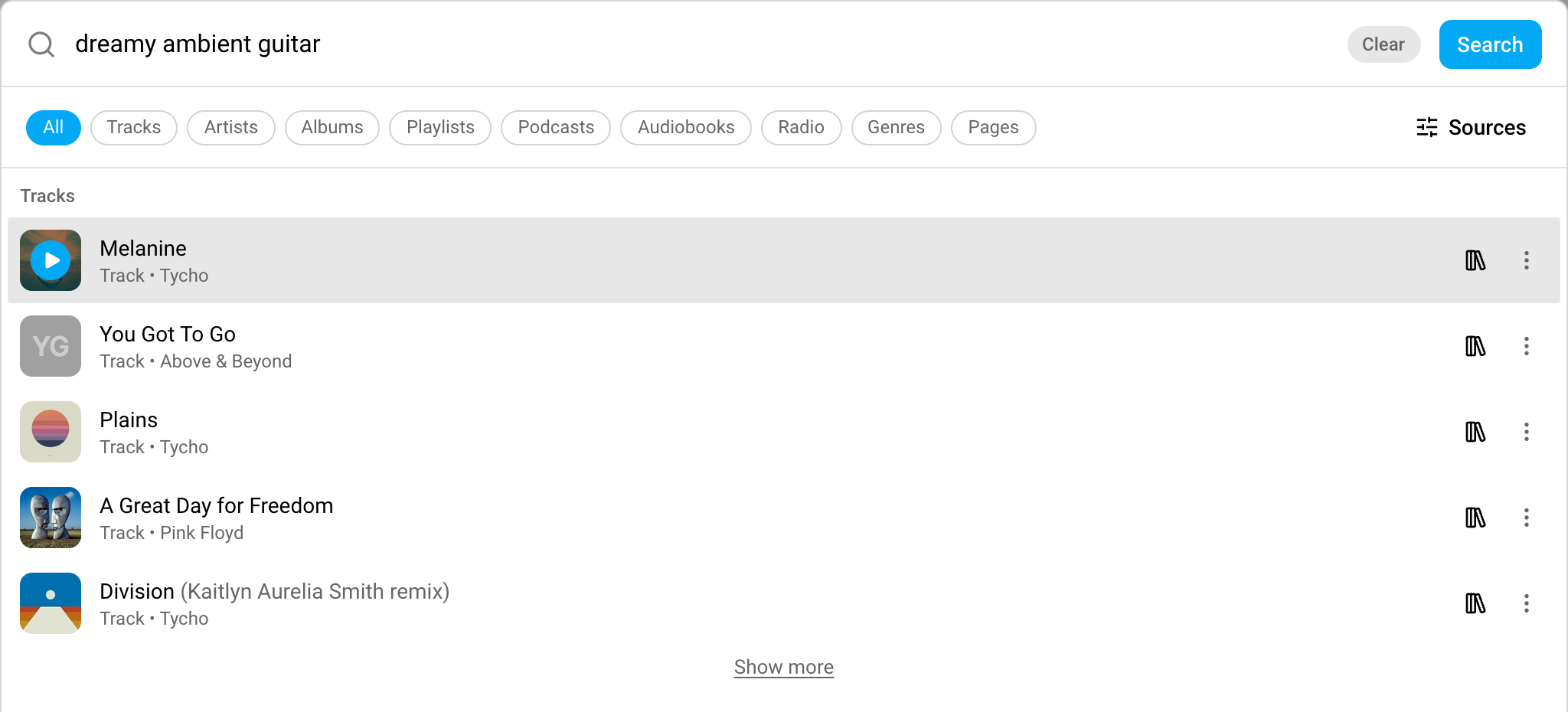
- Free-text search. Optional. Type a description such as “dreamy ambient guitar” or a line about what a song is about into the search pop-up, and AudioMuse-AI returns matching tracks. It searches on sound (CLAP) and on lyrics at the same time.
What you’ll see in Music Assistant
Section titled “What you’ll see in Music Assistant”Every analysed track’s details page shows a Similar tracks list from AudioMuse-AI:
Unless it is turned off in the settings, an Inspired by recently played row appears on the Discover page:
With free-text search on, a description typed into the search pop-up returns tracks that match it:
Requirements
Section titled “Requirements”- A running AudioMuse-AI server that Music Assistant can reach over the network. Its README covers installing it.
- AudioMuse-AI must be pointed at the same media server that Music Assistant uses: Jellyfin, Navidrome (added through the Open Subsonic source) or Plex. That media server also has to be added to Music Assistant as a music source.
- AudioMuse-AI must have finished analysing your library. A track it has not analysed yet gets no similar tracks from AudioMuse-AI.
- Free-text search uses AudioMuse-AI’s CLAP and lyrics indexes. It works with either one built and combines the two when both are there.
Configuration
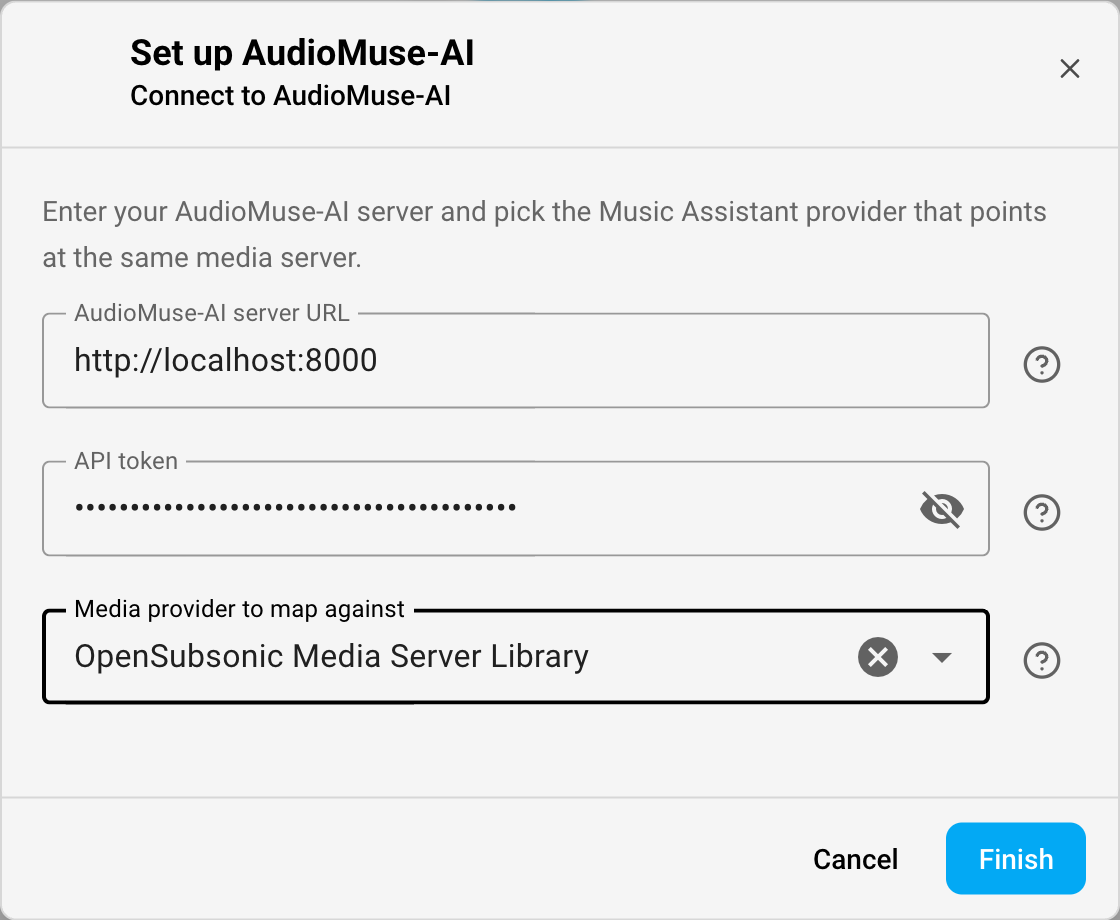
Section titled “Configuration”Add the plugin from Settings → Plugins → Add a plugin. A Set up AudioMuse-AI dialog opens with three fields:
| Setting | Description |
|---|---|
| AudioMuse-AI server URL | The root address of your AudioMuse-AI server, for example http://192.168.1.10:8000. |
| API token | The API token from AudioMuse-AI’s setup page. Needed while authentication is on in AudioMuse-AI, which is its default. Leave it empty only if you turned authentication off. |
| Media provider to map against | The Music Assistant music source that points at the same media server AudioMuse-AI analysed. Pick your Jellyfin, Open Subsonic (Navidrome) or Plex source here. |
Music Assistant connects to the server before saving. If it cannot reach it, or AudioMuse-AI does not accept the token, the form stays open with the error so you can correct it.
These three fields belong to the setup, so the plugin’s settings page does not show them later. To change the address, the token or the media provider, click Reconfigure on that page. The form opens again with your current values filled in.
Options
Section titled “Options”The plugin’s settings page has a Generic and a Status panel:
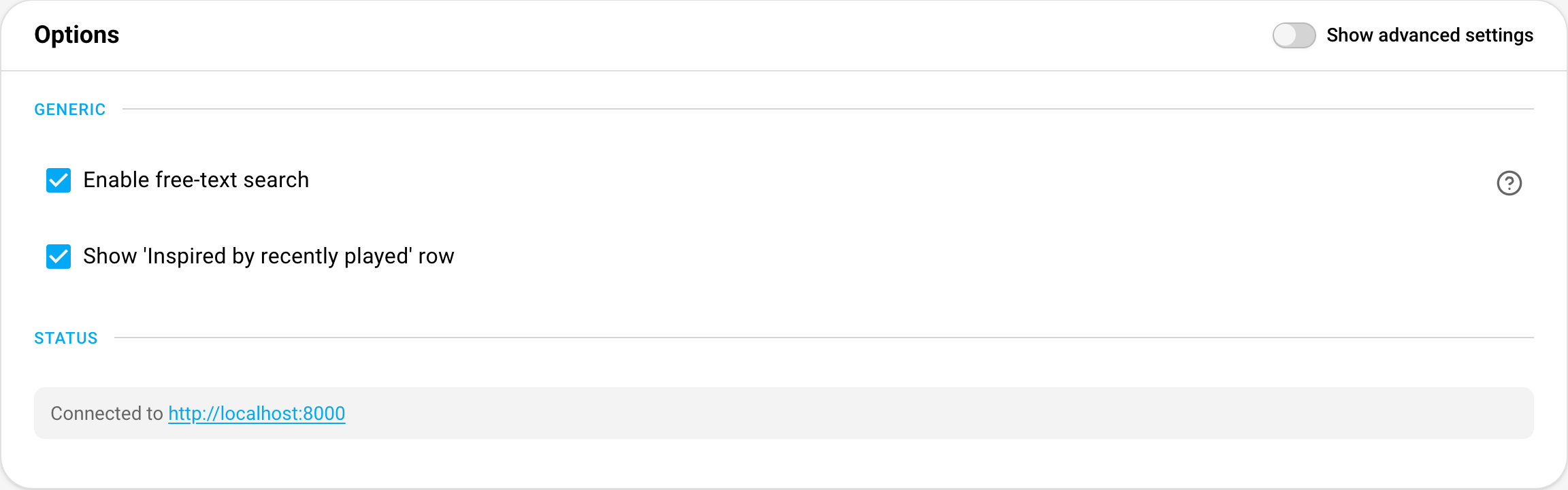
| Setting | Description |
|---|---|
| Enable free-text search | Adds AudioMuse-AI’s sound and lyrics search to the search pop-up. Off by default. |
| Show ‘Inspired by recently played’ row | Shows the row on the Discover page. On by default. Turn it off to hide the row and keep the rest of the plugin. |
| Status | Shows whether Music Assistant can reach the server, for example Connected to http://192.168.1.10:8000. If the server is down it shows Cannot reach AudioMuse-AI server at followed by the address instead. |
Known Issues / Notes
Section titled “Known Issues / Notes”- Results only show up for tracks that are also on the media provider you picked during setup. A track that only exists on Spotify, or only in a different Jellyfin or Plex source, gets no similar tracks from AudioMuse-AI. The discover row works the same way: of your last five played tracks, only the ones also on that media provider count as a starting point. If none of them are, the row is not shown until you play something from that source.
- A track AudioMuse-AI suggests is dropped if Music Assistant cannot find it on the mapped media server, for example when it was removed after AudioMuse-AI analysed it. Lists can then be shorter than expected.
- Only one AudioMuse-AI server can be connected at a time.
- Install either this plugin or Sonic Similarity, not both. With both installed, whichever answers first supplies the similar tracks, and you cannot choose which one that is.
This website uses privacy-first analytics to help us improve the site. You can view all data in our public dashboard.