

Playlist Metadata Provider
Section titled “Playlist Metadata Provider”Music Assistant includes a built-in metadata provider that generates custom artwork and metadata for library playlists. This provider creates unique, visually appealing playlist covers using images from the tracks’ artists and albums, with support for multiple configurable layout templates. It can also automatically detect and assign genres based on the playlist’s track content. This provider is built-in and cannot be disabled. It runs automatically during the metadata refresh cycle for playlists.
Features
Section titled “Features”Playlist Artwork
Section titled “Playlist Artwork”The Playlist Metadata Provider generates artwork for library playlists using seven different layout templates. Each template uses images from the playlist’s content to create a unique visual representation:
Available Templates
Section titled “Available Templates”Album-Based Templates
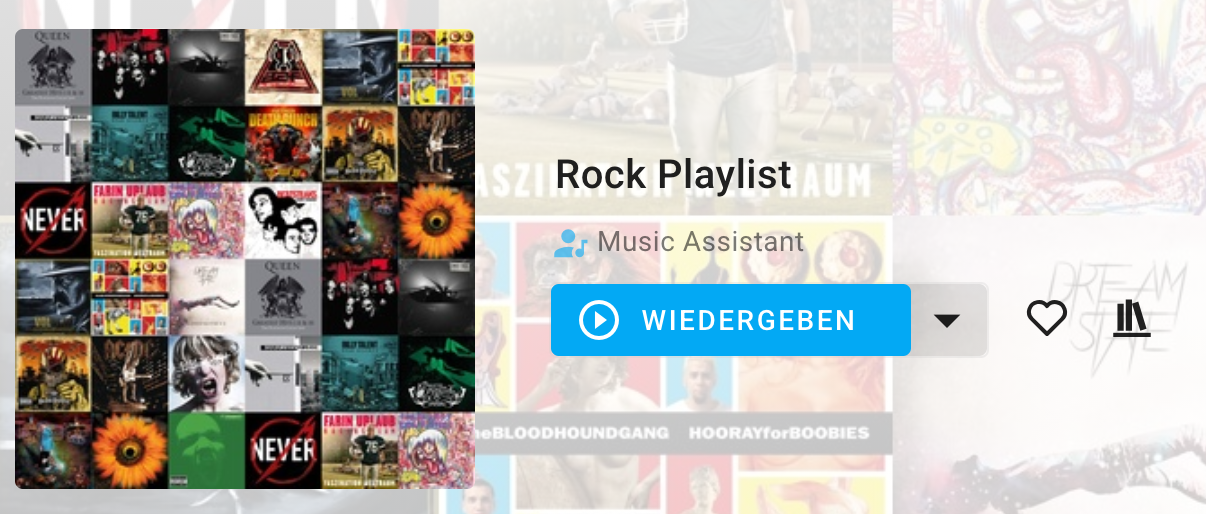
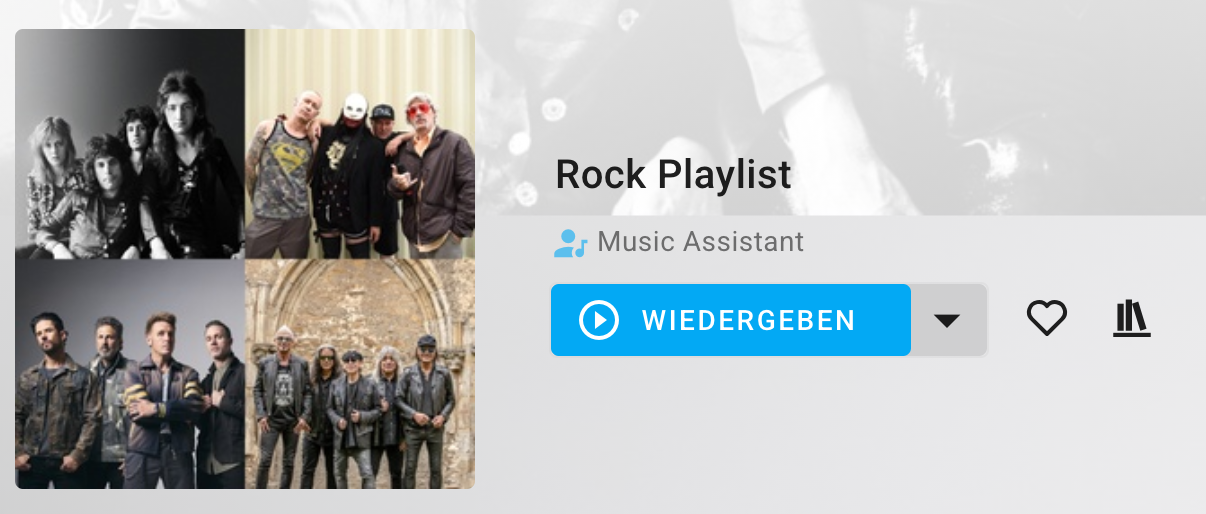
- Album Grid (default) — Classic album-cover grid layout. Shows up to 4 album covers in a 2×2 grid
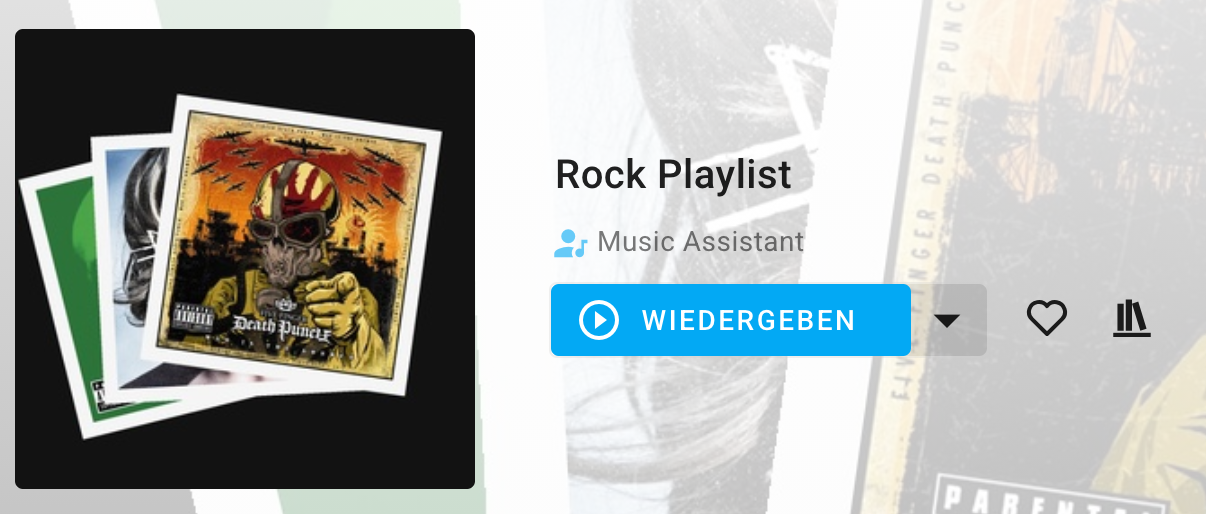
- Album Fan — Up to three album covers displayed as framed photo-print cards in a rotated, stacked arrangement
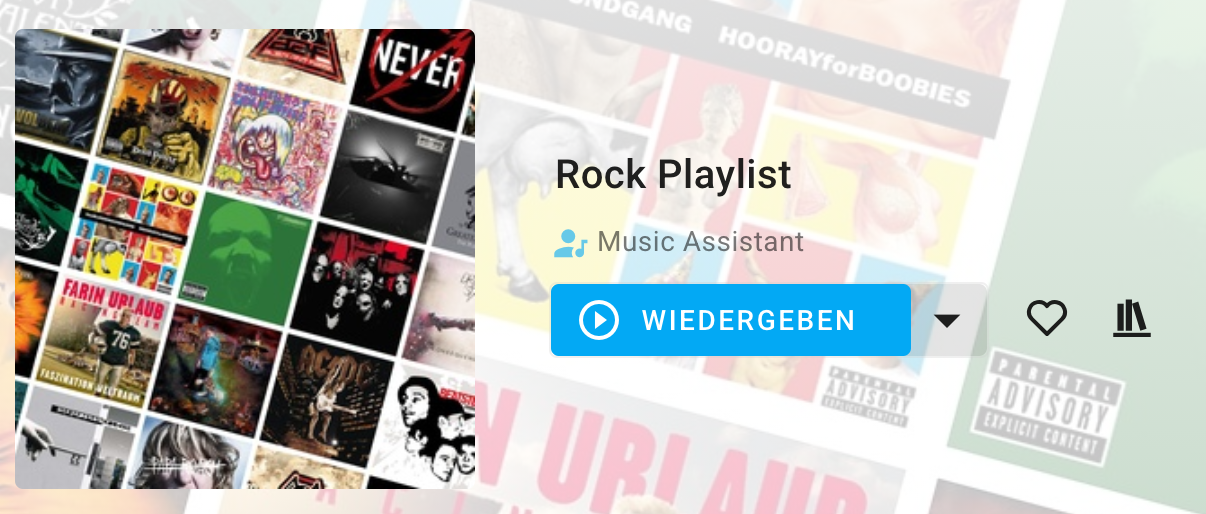
- Album Grid Tilted — Album covers in a grid with white gaps between tiles, with the entire composition rotated approximately 15° for a dynamic look
Artist-Based Templates
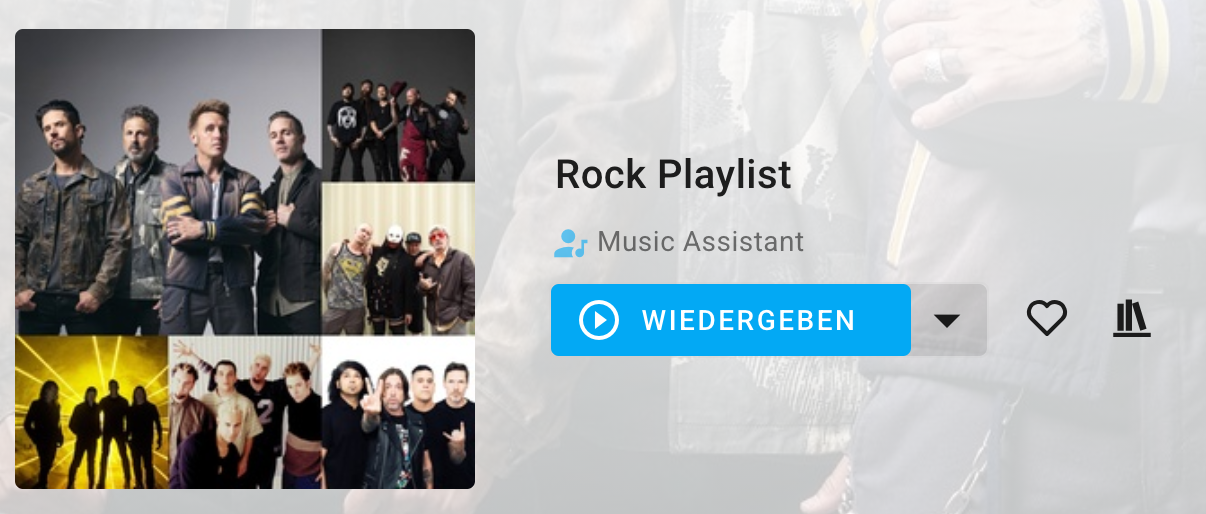
- Artist Mosaic — Dominant artist image large in the center, with other artists displayed as smaller tiles around it
- Artist Grid — Equal-sized grid of unique artist images (up to 4)
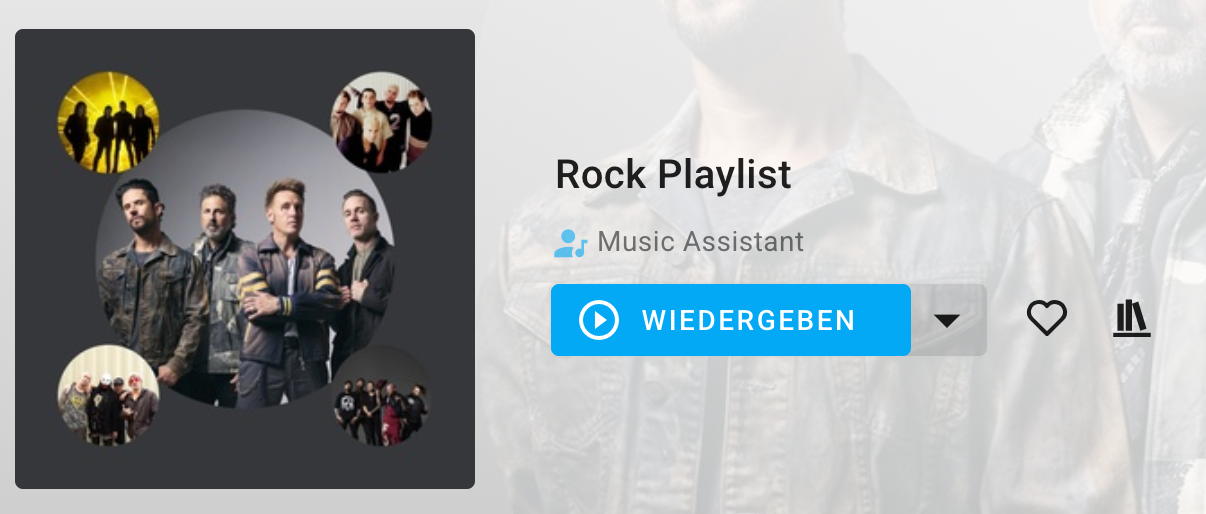
- Artist Radio — Artist-focused layout with the main artist centered on a solid background, overlapping circles of secondary artists around the edges
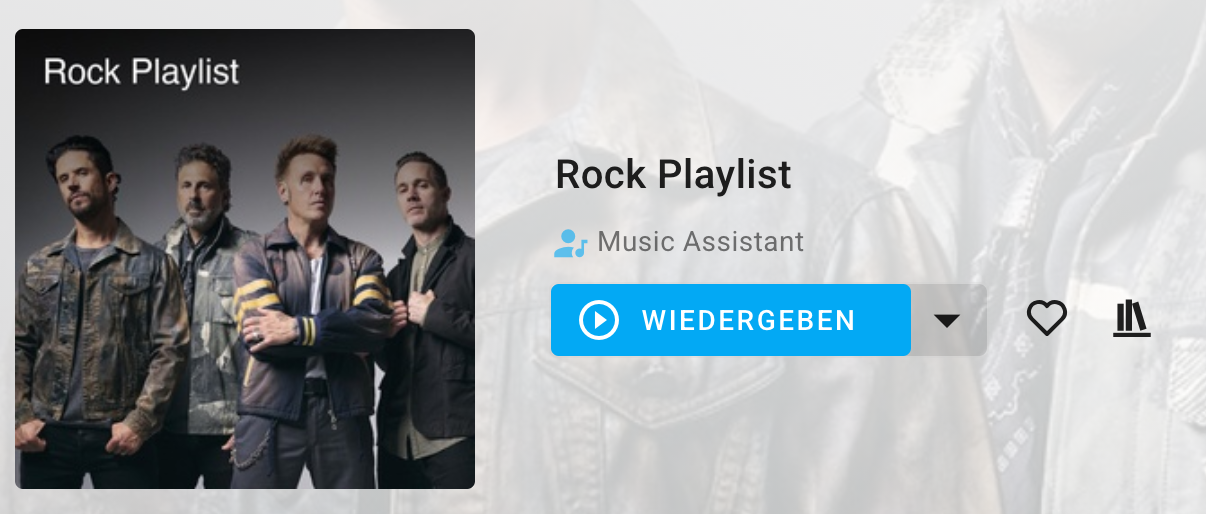
- Artist Banner — Full-bleed artist image with playlist name as text overlay
How Artwork Generation Works
Section titled “How Artwork Generation Works”When a playlist is refreshed, this provider:
- For Smart Playlists: Uses images from the playlist rules (artist/album seeds, genre filters) if available
- Otherwise: Analyzes tracks to identify the most prominent artists and albums
- Generates artwork using the selected template
Image cleanup runs automatically every 2 hours.
Genre Detection
Section titled “Genre Detection”When enabled, the provider automatically detects genres for playlists by analyzing the genre tags of all tracks in the playlist. This helps categorize and discover playlists based on musical style.
How Genre Detection Works
Section titled “How Genre Detection Works”- Collects genres from all tracks in the playlist
- Calculates percentages based on how frequently each genre appears
- Filters genres that meet the minimum threshold (default: 10% of tracks)
- Returns top genres up to the maximum count (default: 3 genres)
For example, a 26-track playlist with 15 Rock tracks (57.7%), 5 Pop tracks (19.2%), and 3 Jazz tracks (11.5%) would be assigned genres: Rock, Pop, Jazz.
NOTE
Genre detection requires tracks to have genre metadata. Tracks from streaming providers typically include genre information; for local files, ensure genre tags are populated.
Configuration
Section titled “Configuration”Settings
Section titled “Settings”Artwork
-
Template — Select which layout template to use for generating playlist artwork
- Options:
album_grid(default),album_fan,album_grid_tilted,artist_mosaic,artist_grid,artist_radio,artist_banner
- Options:
-
Skip Provider Playlists (default: enabled) — When enabled, skips artwork generation and genre detection for playlists that already have provider-supplied metadata (e.g., playlists synced from Spotify or Tidal). This preserves official artwork and genres from streaming services
Genre Detection
-
Enable Genre Detection (default: disabled) — When enabled, automatically detects and assigns genres to playlists based on their track content
-
Genre Minimum Threshold (default: 10%, range: 5-50%, advanced) — Minimum percentage of tracks that must share a genre for it to be included. For example, with a 10% threshold, a 20-track playlist needs at least 2 tracks of a genre for it to be assigned
-
Genre Maximum Count (default: 3, range: 1-10, advanced) — Maximum number of genres to assign to each playlist. Only the most common genres (above the threshold) are kept
TIP
The advanced genre settings (threshold and maximum count) are hidden by default. Enable “Show advanced options” in the provider settings to adjust these values.
- Artwork is generated automatically during playlist metadata refresh
- Smart Playlists with artist or album seed filters will use those images directly for more relevant artwork
- Artist templates work best with diverse-artist playlists; album templates work better for compilation-style playlists
This website uses privacy-first analytics to help us improve the site. You can view all data in our public dashboard.