

Marketplace 
Section titled “Marketplace ”The Marketplace is where you find and add music sources, player support, metadata, plugins and audio analysis. It is the first entry in the settings. The add buttons on the settings pages, such as Add a music source under Settings → Music sources, open it too, on the tab of that kind.
Administrators can add anything from it. Users see the Marketplace when their role lets them add music sources of their own, as the standard User role does, and it then only offers the music sources they can add for themselves, such as their own Spotify account or a folder of local files. See Adding your own music sources.
Discover
Section titled “Discover”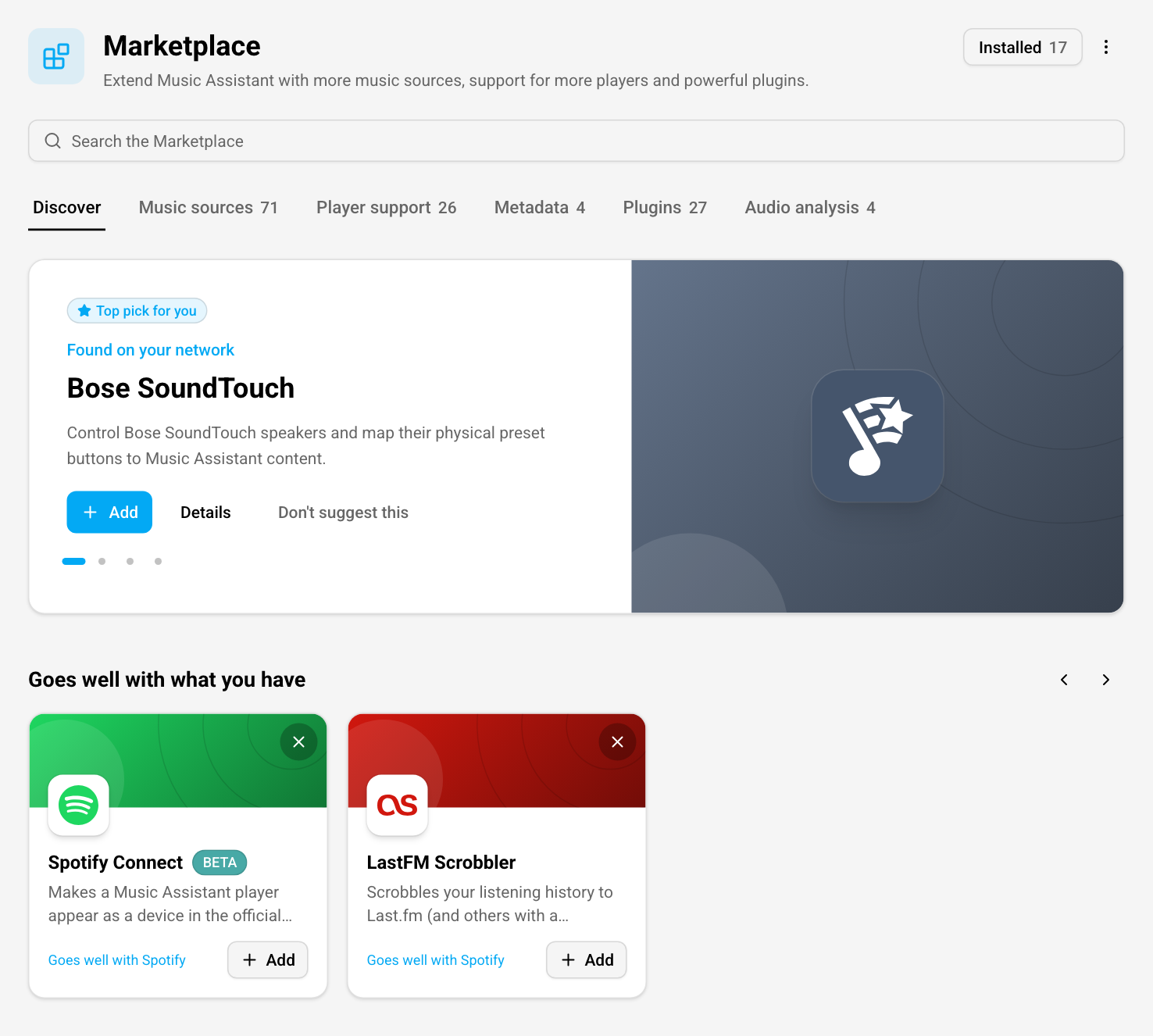
The Discover tab opens with a Top pick for you, followed by rows of suggestions. The top pick holds up to four picks: the dots below it, or a swipe, move between them, and the one shown first changes every day. The rows are:
- Found on your network. Support for devices your server sees on your network that you have not set up yet, such as your speakers
- Goes well with what you have. Something that pairs with what you already set up, such as Spotify Connect next to Spotify. The card says what it goes well with
- Popular. Well-known music sources, player support and plugins, such as Spotify, Sonos and AirPlay
- New in and the release of Music Assistant you run, such as 2.11. What is new in that release
- New in the community catalog and Recently updated. What entered the community catalog, or got a new version, in the last 30 days. Only while the community catalog is enabled
Only what you can still add is suggested, and a row without suggestions is left out. A suggestion found on your network, or one that goes well with what you have, can be turned down with Don’t suggest this, or with the ✕ on its card. Undo in the message that follows brings it back. The choice is kept with your user, so it holds on every device.
Your server works out the suggestions itself, from what is set up, what it sees on your network and the lists that come with Music Assistant. Nothing about your setup leaves your server for them.
At the bottom of the tab, Browse everything leads to the tab of each kind.
Browsing and searching
Section titled “Browsing and searching”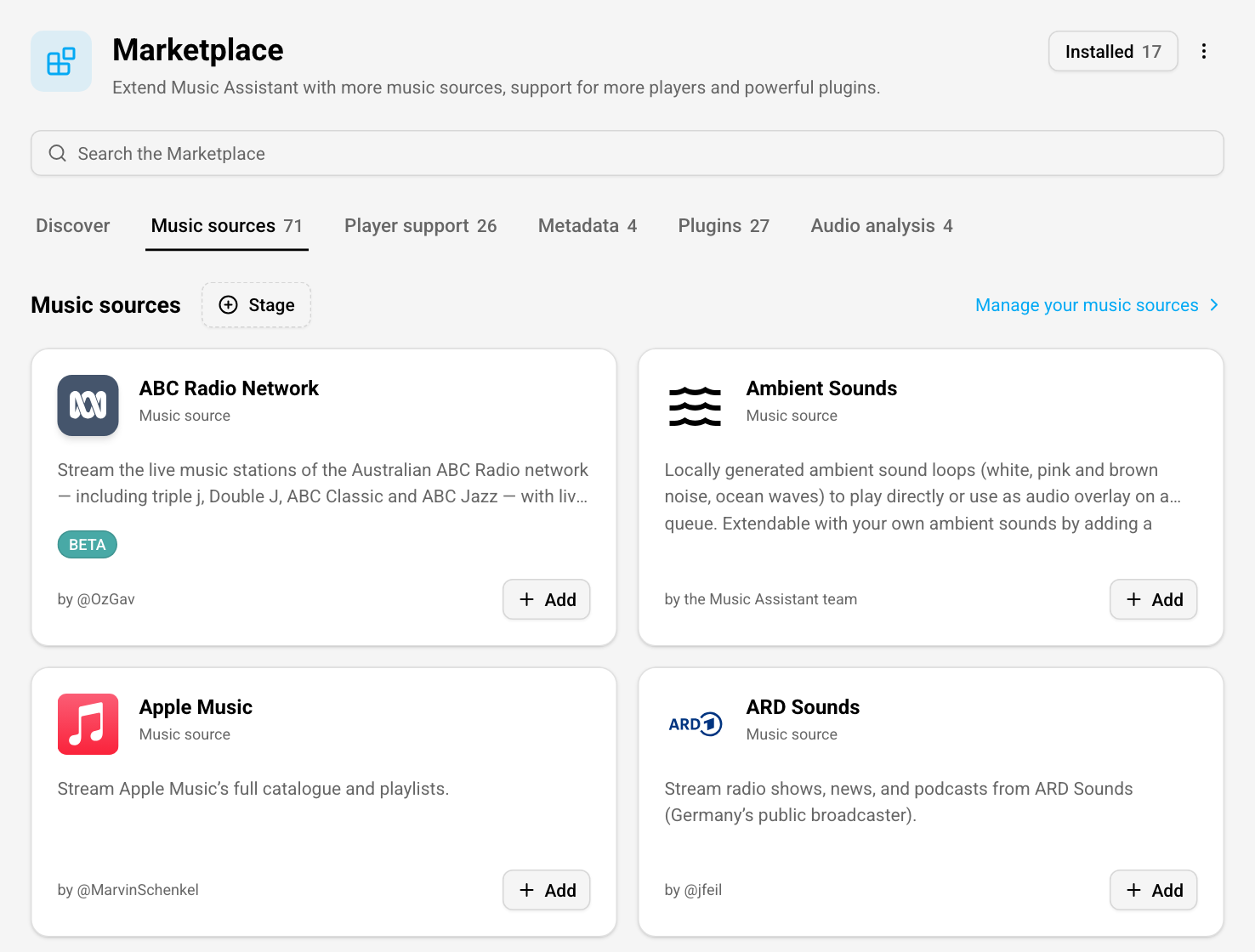
Each kind has a tab of its own, with how many there are: Music sources, Player support, Metadata, Plugins and Audio analysis. A tab lists everything of that kind by name. Stage filters the list, and the link at the top right, such as Manage your music sources, opens the settings page of that kind.
Search the Marketplace looks through the names and descriptions. On the Discover tab it searches every kind; on another tab, only that kind.
The card of an entry says who made it: by the Music Assistant team, or by its maintainers, with their names on GitHub. Its badges say more:
- Community. It comes from the community catalog
- Beta. It is complete, but not fully tested and may still have bugs
- Alpha. It is early in its development and not ready for everyday use
- Experimental. It may change at any time or break often, for example because the service it uses keeps changing. Not recommended for everyday use
- Unmaintained. Nobody looks after it any more, so it gets no updates or support and may stop working. Its maintainers are looking for someone to take it over
- Added. You have set it up already
An entry without a stage badge is stable.
The details of an entry
Section titled “The details of an entry”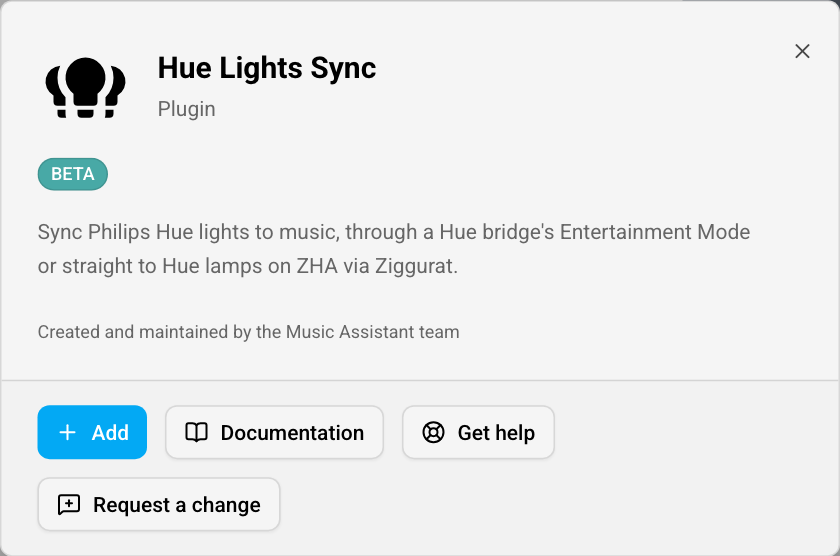
Select an entry to see its details: what it does, who created and maintains it, and its buttons.
- Add. Sets it up, the same way as on its card. Once it is set up, Manage opens its settings
- Documentation. Its documentation
- Get help. Where to ask questions and report problems: the maintainers’ own page when they have one, otherwise the issue tracker of Music Assistant, or for something from the community catalog its repository on GitHub
- Request a change. Asks the Music Assistant team for a change in the feature requests. Only on what the team looks after: a change to something from the community catalog is for its maintainers
Missing something altogether? Request it at the bottom of the page opens the feature requests as well.
Installed
Section titled “Installed”The Installed button at the top right shows everything that is set up, grouped by kind, and its number counts them. For an administrator that includes what comes with Music Assistant itself; a user sees the music sources they can use. Select something you manage to open its settings; a music source shared with you is listed, but its settings are not yours to open. The link next to a kind, such as Manage your music sources, opens its settings page. Select Installed again, or a tab, to go back.
A second number on the button, in a coloured circle, counts the updates waiting in the community catalog.
The community catalog
Section titled “The community catalog”The community catalog holds music sources, player support, metadata and plugins that people in the community make and maintain, rather than the Music Assistant team. Each one lives in its maintainer’s own repository on GitHub.
The Music Assistant team checks what each one does against the rules of the community catalog when it is listed, and every new version is checked automatically: that it loads and stays within those rules. That is all a listing means. The team does not review its code, does not test whether it works and does not support it. What you install runs as part of your Music Assistant server, with the same access your server has, so you install it at your own risk, and its maintainers are the people to ask when something does not work.
Only administrators see the community catalog.
Enabling it
Section titled “Enabling it”
The community catalog starts out disabled. Enable it with Enable on the card at the bottom of the Discover tab, or with Enable the community catalog in the ⋮ menu at the top right of the page. Don’t show again puts the card away for your user; the menu keeps the option.
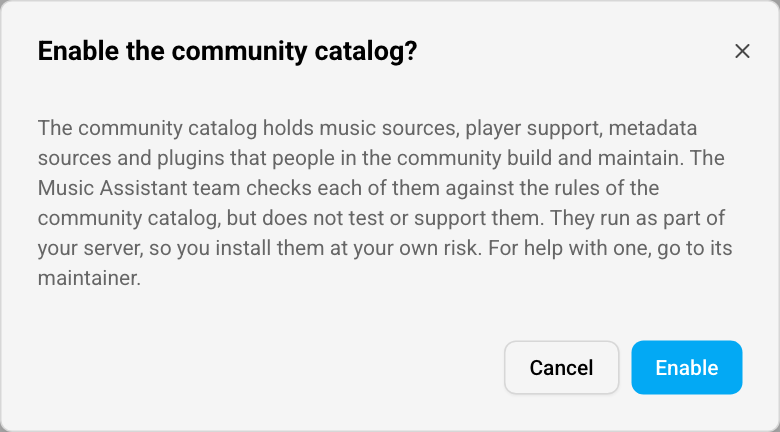
Before it is enabled you confirm that you have read what it is: its entries are checked against the rules, but not tested or supported by the team, and they run as part of your server at your own risk. Its entries then join the tabs with a Community badge, and its own rows show on the Discover tab.
Installing from it
Section titled “Installing from it”Add something from the community catalog as you would anything else. A note comes first, every time:
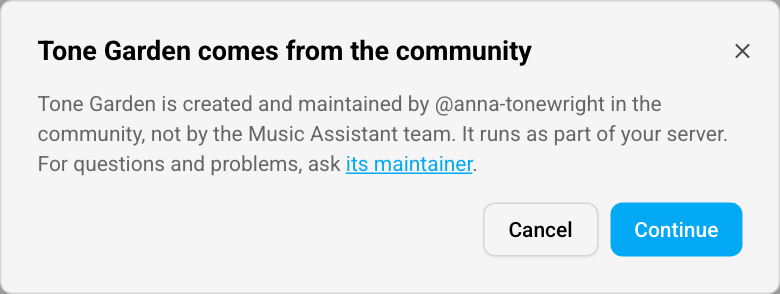
It names its maintainers, says that it runs as part of your server, and links to where you ask for help. Continue installs it on your server and then sets it up as usual. Its settings are afterwards on the settings page of its kind, such as Settings → Music sources, like those of anything else.
Updates
Section titled “Updates”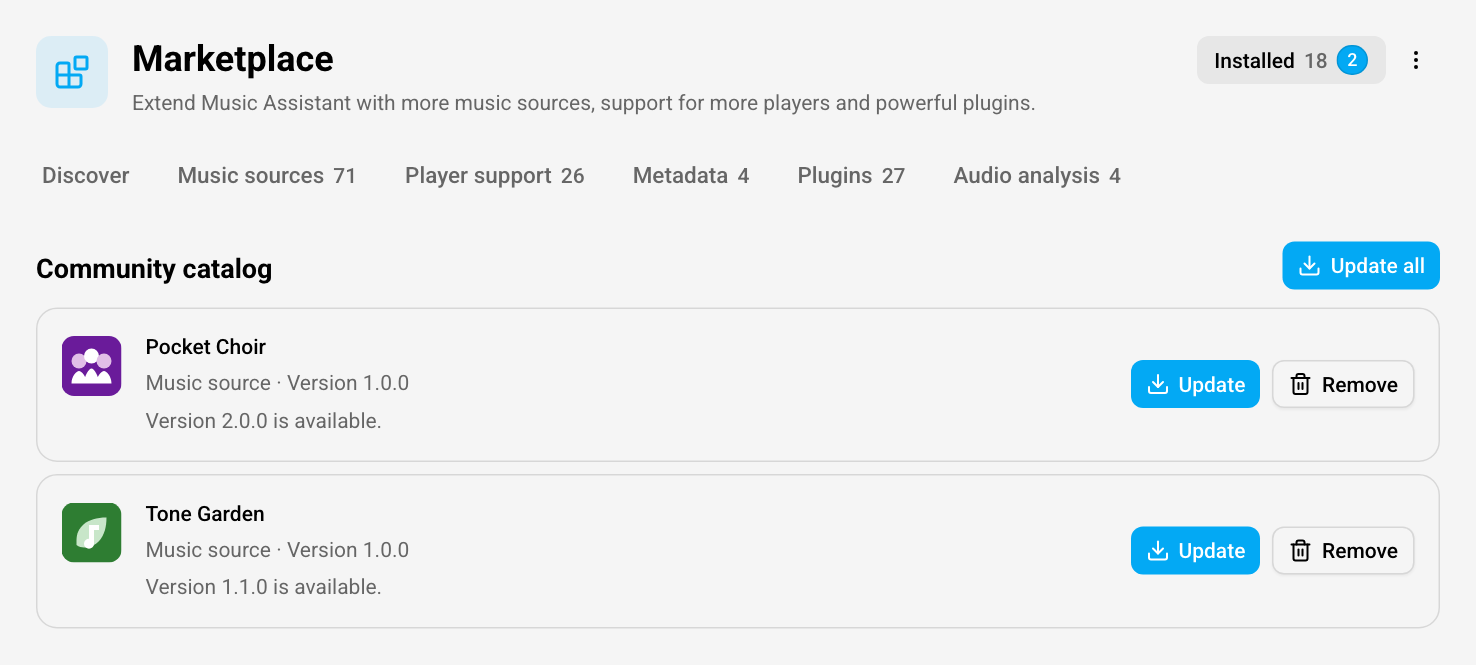
Your server looks for new versions once a day and every time it starts. Check for changes in the ⋮ menu looks right away. A new version shows as Version … is available. in the Community catalog section of the Installed view, and on the details of the entry. Update installs it, also while music is playing: the entry, and what depends on it, stops and starts again, so music that plays through it stops. When more than one update waits, Update all installs them at once.

Update automatically in the ⋮ menu installs new versions by themselves. Nothing updates while something is playing: an update waits until playback has stopped.
When a new version fails to start because of a fault in that version, Music Assistant puts the version you had before back by itself and says so in the Installed view. Sometimes a restart of Music Assistant is needed to finish that. A failed login or a service that cannot be reached is not such a fault. While the version that failed is still the newest on offer, Try again installs it once more.
Some updates need a restart. The entry is then marked Restart needed: the version you had keeps running until you restart Music Assistant.
Removing something
Section titled “Removing something”Remove, next to it in the Installed view, removes it from your server. What you set up with it stays on the settings page of its kind, where you can remove it too. Install it again later and what you set up with it before comes back.
Disabling it
Section titled “Disabling it”Disable the community catalog is in the ⋮ menu. Remove what you installed from it first. Something Music Assistant installed by itself, because it moved to the community catalog, does not count: it keeps running.
When something no longer runs
Section titled “When something no longer runs”In the Installed view, an entry can carry one of these labels:
- Blocked. It was found to break the rules, so it no longer runs on your server. The reason is shown, with Read more where there is more to read. Its settings and your library stay. Remove it; when its maintainers fix the cause, the community catalog can list it again
- Withdrawn. The community catalog no longer offers it. It keeps running until you remove it, but gets no more updates
- Not running. It is installed, but your server does not run it. The text below it says why, for example that it is not available for this version of Music Assistant, and, where there is something you can do, what
Something moved to the community catalog
Section titled “Something moved to the community catalog”Now and then something that came with Music Assistant moves to the community catalog, where its own maintainers look after it. If you had it set up, Music Assistant installs it from the community catalog by itself, so it keeps working, also when you never enabled the community catalog. That happens as soon as your server can reach the community catalog and it offers a version for your release of Music Assistant. Until then, its settings say that it moved, or why it could not be installed, and Music Assistant tries again every time it starts and every time it checks the community catalog.
Once it is installed, a note, … moved to the community catalog, says so at the top of the Marketplace and on the settings page of its kind. Details shows the entry, or the Installed view when it does not run, and Dismiss puts the note away.
Safe mode
Section titled “Safe mode”Nothing from the community catalog runs while Music Assistant is in safe mode. The Marketplace then says that the community catalog is not available: what you installed from it does not show there until you start Music Assistant normally again.
Getting help
Section titled “Getting help”Ask the maintainers of the entry, through Get help or Source code in its details, or the link in the note you read before you installed it. The Music Assistant team does not support what comes from the community catalog.
Something in the community catalog that breaks the rules? Open an issue in the community catalog on GitHub, with which entry it is, what it does and how you noticed. When it puts its users at risk, do not post the details in public: use Report a vulnerability on the Security tab of that repository instead.
Making something for it
Section titled “Making something for it”Want to build a music source, player support or a plugin and list it in the community catalog? See Building a provider in the developer documentation.
This website uses privacy-first analytics to help us improve the site. You can view all data in our public dashboard.