

Storage settings 
Section titled “Storage settings ”A storage location is a folder, a drive or a network share that Music Assistant can read files from. When you add a Local files source, you pick its folder from these locations.
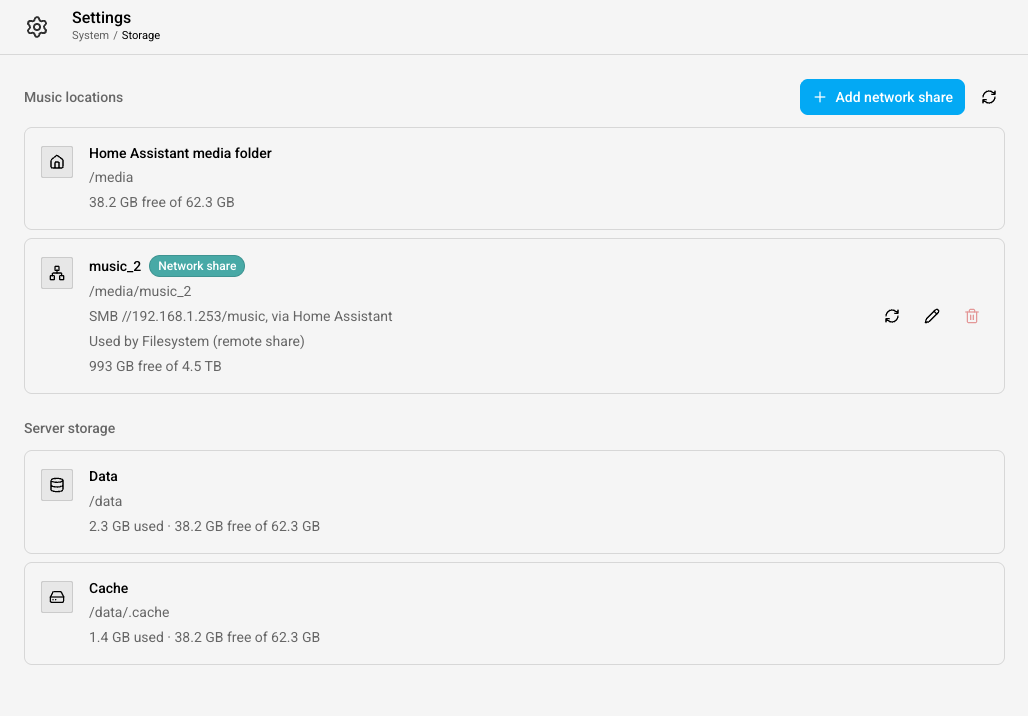
The Storage page lists the storage locations and lets you add network shares. You find it in the settings under System. Only administrators see this page.
Where storage locations come from
Section titled “Where storage locations come from”Which locations you see depends on how Music Assistant is installed.
- Home Assistant App. The Home Assistant media folder (
/media) and every network share added to it. A network share you add on the Storage page is connected by Home Assistant itself, so it also shows up in Home Assistant under Settings → System → Storage. It works the other way round too: a network share added there with the usage Media shows up in Music Assistant - Docker. Every folder or volume you map into the container is found automatically, for example
-v /mnt/nas/music:/media/music. For music on a NAS, mount the share on the host and map it into the container, as described under Your music files
Music locations
Section titled “Music locations”Each location shows its name, its path, the kind of location it is, such as Network share or USB drive, and the free space where it is known. Two more labels say something about its state:
- Unavailable. Music Assistant cannot reach the location right now, for example because the NAS is switched off. The reason is shown below it. A Local files source on this location is unavailable too. It returns by itself once the location is reachable again, and nothing is removed from the library while it is away
- Read-only. Music Assistant can read the files but not change them. Playlist files in this location cannot be created or edited. Playlists you create in Music Assistant itself are not affected
A location that no music source uses offers Use as music source. It opens the setup of a Local files source with the folder of that location filled in.
Adding a network share
Section titled “Adding a network share”Select Add network share and fill in the form:
- Share type. SMB or NFS. Most NAS devices and Windows computers share folders over SMB
- Server. The name or IP address of the NAS or computer, for example
nas.localor192.168.1.10 - Share name. For SMB, the name of the shared folder, for example
music - Export path. For NFS, the folder the server shares, for example
/volume1/music - Username and Password. For SMB. Leave both empty to connect as a guest
- Read-only. Music Assistant can read from the share but not change anything on it
- Protocol version. Under Show advanced settings. Leave it on Automatic unless the share does not connect with that setting. On the Home Assistant App, only SMB 1.0 and 2.0 can be picked, and NFS has no version setting
Select Add. The share joins the list of music locations, and you can pick it, or a folder inside it, for a Local files source. The message that confirms the new share offers Use as music source as the next step.
If this installation of Music Assistant cannot connect a network share itself, the button is not there. In a container, the page shows Add network shares on the host instead. Mount the share on the host and map it into the container. It then shows up as a location of its own.
Changing or removing a network share
Section titled “Changing or removing a network share”A network share that Music Assistant added has three buttons:
- Reload. Connects the share again, for example after the NAS was switched off. While a music source uses the share, Music Assistant also tries this by itself
- Edit. Changes the settings of the share. The password is not shown. Leave it empty to keep the current one
- Remove. Disconnects the share. The files on it are not deleted
When a location holds the folder of an enabled music source, it shows Used by with the name of that source, and it cannot be removed. Disable or remove that music source first. The source is named on the location closest to its folder. A location around that one cannot be removed either.
A location can also lie inside the folder of a music source. A source on /media reads every network share below it, for example. Such a location shows Also read by with the name of that source. It can be removed. The source then drops the items of that share from the library at its next sync, and Music Assistant tells you so before you confirm.
A share that was added in Home Assistant, or mounted on the host, has no buttons here. Change it where it was added.
Server storage
Section titled “Server storage”This part of the page shows where Music Assistant keeps its own data and its cache, how much space they use and how much is free. These locations are never offered for a music source.
Who can use the storage locations
Section titled “Who can use the storage locations”Only administrators see the Storage page, and only they can add or remove storage locations. A user whose role allows adding music sources of their own can add a Local files source in any music location.
Known limits
Section titled “Known limits”- A network share connected through Home Assistant sits in the Home Assistant media folder. Home Assistant’s media browser, and other apps that use the media folder, can see it too
- Music Assistant assumes your NAS is on your local network. It adds no encryption of its own, so a network share should not be reached over the internet
This website uses privacy-first analytics to help us improve the site. You can view all data in our public dashboard.