

Snapcast 
Section titled “Snapcast ”Music Assistant supports Snapcast, a powerful solution for synchronized multi-room audio streaming. Snapcast enables seamless playback across various devices, creating an immersive audio experience. Whether using Snapcast-compatible speakers or devices like the Raspberry Pi, synchronized audio playback can be enjoyed effortlessly. This component is contributed and maintained by SantiagoSotoC.
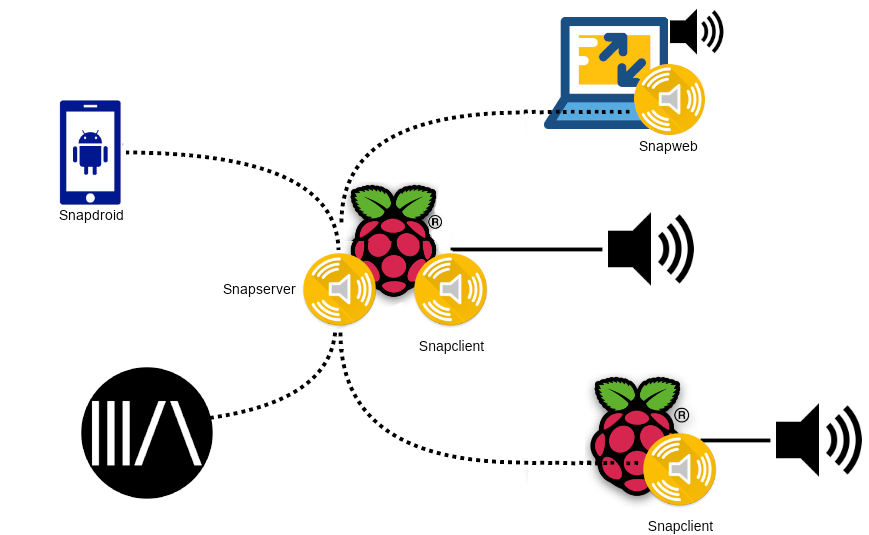
MA includes a built-in Snapserver although an external server can also be used. The diagram below shows a possible combination of outputs. In the diagram a Raspberry Pi runs the server which communicates to MA and all of the clients. The server running Pi is also running Snapclient and is connected to a set of speakers. Then there is another Pi running Snapclient in another room, a phone running Snapdroid and a laptop running Snapweb.
Features
Section titled “Features”- Synchronized playback across all Snapcast devices
- Lossless audio quality. The default is 48 kHz / 16-bit. Higher sample rates and 24-bit are available only when Music Assistant is connected to a compatible external Snapserver.
Configuration
Section titled “Configuration”- In Music Assistant, go to Settings → Player providers, click Add a player provider and select
Snapcast. This starts the built-in Snapcast server; no further server setup is needed. To use an external Snapcast server instead, enableShow Advanced Settingsand enter its IP and port (see Settings below and note the version requirements in Known Issues / Notes). - Connect your players (clients) by pointing a browser or the Snapdroid app at
<YOUR_MA_IP_ADDRESS>:1780. Each connected client appears in the MA player list.
Settings
Section titled “Settings”Provider
Section titled “Provider”Music Assistant ships with its own built-in Snapserver and uses it by default. One setting decides which set of options below applies:
- Use existing Snapserver. Off by default when the built-in Snapserver is available, in which case this setting and the external server settings below only appear with Show Advanced Settings enabled. On an install where no built-in Snapserver is available it is on and cannot be turned off, and the built-in settings are hidden
With Use existing Snapserver enabled the following are available:
- Snapcast Server IP. The IP address of the external Snapcast server (e.g.
192.168.1.200). Defaults to 127.0.0.1 - Snapcast Control Port. The port the external Snapcast server can be reached on. Defaults to 1705
- Snapcast stream sample rate. The rate Music Assistant sends into Snapcast, either 48000 (the default), 96000 or 192000. Your Snapcast clients must support the rate you choose. Reload the Snapcast provider after changing it
- Snapcast stream bit depth. Either 16 (the default) or 24. 24 bit needs an external Snapserver built with packed 24 bit PCM support, which normal package builds do not have yet. See this build. The built-in Snapserver always stays at 48kHz / 16 bits
The Built-in Snapserver Settings appear while the built-in server is in use and are as follows:
- Snapserver buffer size. The total buffer between the signal being read on the server and played out on the client, which is also the total latency of the audio. The default is 1000 ms and it can be set between 200 and 6000. It is why a delay of about a second is noticed when you press play, pause or skip
- Snapserver chunk size. How much audio the server reads from the source at a time before passing it to the encoder and sending it to the clients. The default is 26 ms and it can be set between 10 and 100. Some codecs need more data than others, FLAC needs around 26 ms, which is where the default comes from
- Snapserver initial volume. The volume new clients start at. The default is 25
- Send audio to muted clients. Off by default. Keeps a stream running to clients that are muted
- Snapserver default transport codec. Options are FLAC (the default), OGG, OPUS and PCM
One setting applies whichever server you use:
- Snapcast idle threshold stream parameter. The stream switches from playing to idle after this many milliseconds of silence. The default is 60000
Player
Section titled “Player”Snapcast players use the standard Individual Player Settings, including the settings shared by most protocols.
Known Issues / Notes
Section titled “Known Issues / Notes”- The Snapcast provider will use the built-in Snapserver by default although a switch in the settings allows the use of an external server if desired. When using an external server the server IP and port must be entered
- Music Assistant only supports external Snapcast servers running version 0.27.0 (or newer). If using an external server you can confirm the version by launching with the command
snapserver -v. Note that version 0.28.0 is only supported on a 64 bit OS. Note also that version 0.30.0 lacks required functionality for MA and cannot be used - If not using an external server then the built-in Snapserver with the Snapweb option will be launched when this provider is added. Once enabled the workings of the server are transparent and the clients appear in the MA UI
- Clients are created by pointing a browser or Snapdroid at
<YOUR_MA_IP_ADDRESS>:1780. The browser tab must remain open to maintain the stream - Client names for all clients can be adjusted in Snapweb and Snapdroid via their respective UIs. Additionally, it is possible to rename the players in the MA settings
- The built-in Snapserver can only accept connections from Music Assistant
- If it is necessary to adjust the latency of a client, it must be done from another interface such as Snapdroid or Snapweb
- If muted players go out of sync or exhibit undesirable rebuffer delays when subsequently unmuted, or shutdown while muted then try turning on the option
Send audio to muted clients - Pausing has been implemented as best as can be achieved with the limitations of Snapcast. MA issues a STOP and RESUME command to achieve the pause effect but this means the resulting player state never changes to paused.
- Occasionally after a stream change (pause, skip or seek) Snapweb can go silent. This can be fixed by selecting stop then play in the Snapweb UI
- The Snapcast app for iOS is broken as it uses an old version of Snapclient. Using it brings problems with this provider
- Ensure that the ports 1704 and 1705 on the Snapserver host are open. Also make sure that the ports between 4953 and 5153 inclusive are open
- Try the default Snapcast settings and then make changes as necessary
- Leave the stream sample rate and bit depth at the defaults unless you are using a compatible external Snapserver. Reload the Snapcast provider after changing them
- The stream name must be
default
This website uses privacy-first analytics to help us improve the site. You can view all data in our public dashboard.